
Command Palette
Your fastest path to any feature, any search, and any past research in NewBizBot
The Command Palette is your fastest path to any feature, any search, and any past research in NewBizBot. Press Cmd+K (Mac) or Ctrl+K (Windows/Linux) from anywhere in the application, and you have instant access to navigation, your complete research history, and the ability to start new research without moving your hands from the keyboard.
Think of the Command Palette as your research command center. Whether you need to jump to a specific prospect profile from three weeks ago, navigate to the Grid workspace, or kick off new research with a specific configuration, it takes two seconds instead of twenty clicks.
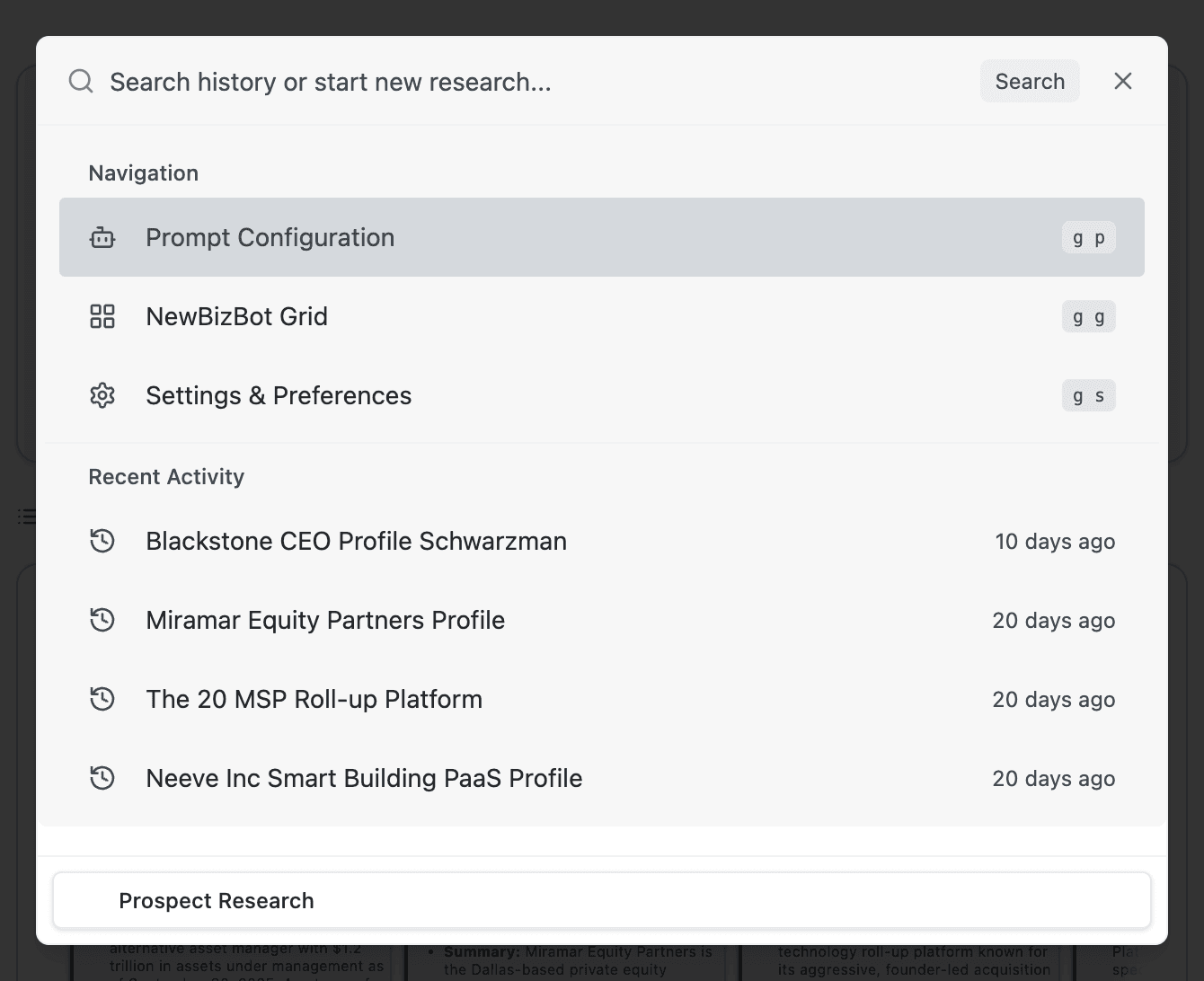
Opening the Command Palette
You can summon the Command Palette in two ways. The keyboard shortcut Cmd+K (Mac) or Ctrl+K (Windows/Linux) works from any page in NewBizBot, regardless of which input field has focus. Alternatively, click the Search button in the header bar at the top right of any page. Both methods open the same unified search interface.
The Command Palette overlays your current view, dimming the background so you can focus on finding what you need. Press Escape or click outside the palette to dismiss it and return to whatever you were doing.
Navigating NewBizBot Instantly
The Navigation section appears at the top of the Command Palette when you first open it. Each destination shows a keyboard shortcut you can use without even opening the palette:
| Shortcut | Destination |
|---|---|
g w | Go to Workspace (your main research hub) |
g p | Go to Prompt Configuration (customize how research is generated) |
g g | Go to NewBizBot Grid (batch research and list discovery) |
g s | Go to Settings & Preferences (application settings) |
These two-key shortcuts work from anywhere in the application. Press g followed by w, and you'll land on the Workspace. No need to reach for your mouse or navigate through menus. For wealth managers processing dozens of prospects daily, these shortcuts become second nature within a day of use.
Searching Your Research History
Below the Navigation section, you'll see Recent Activity, a chronological list of your past searches. This is not just a log but a research asset you can build on. Click any item to jump directly to that completed research, ready for review or further exploration.
When you start typing in the search field, the Command Palette transforms into a powerful search engine for your research history. Type any word, name, or phrase, and NewBizBot searches across research titles and subject names, full text of research summaries, source citations and URLs, and company data, executive names, and financial details.
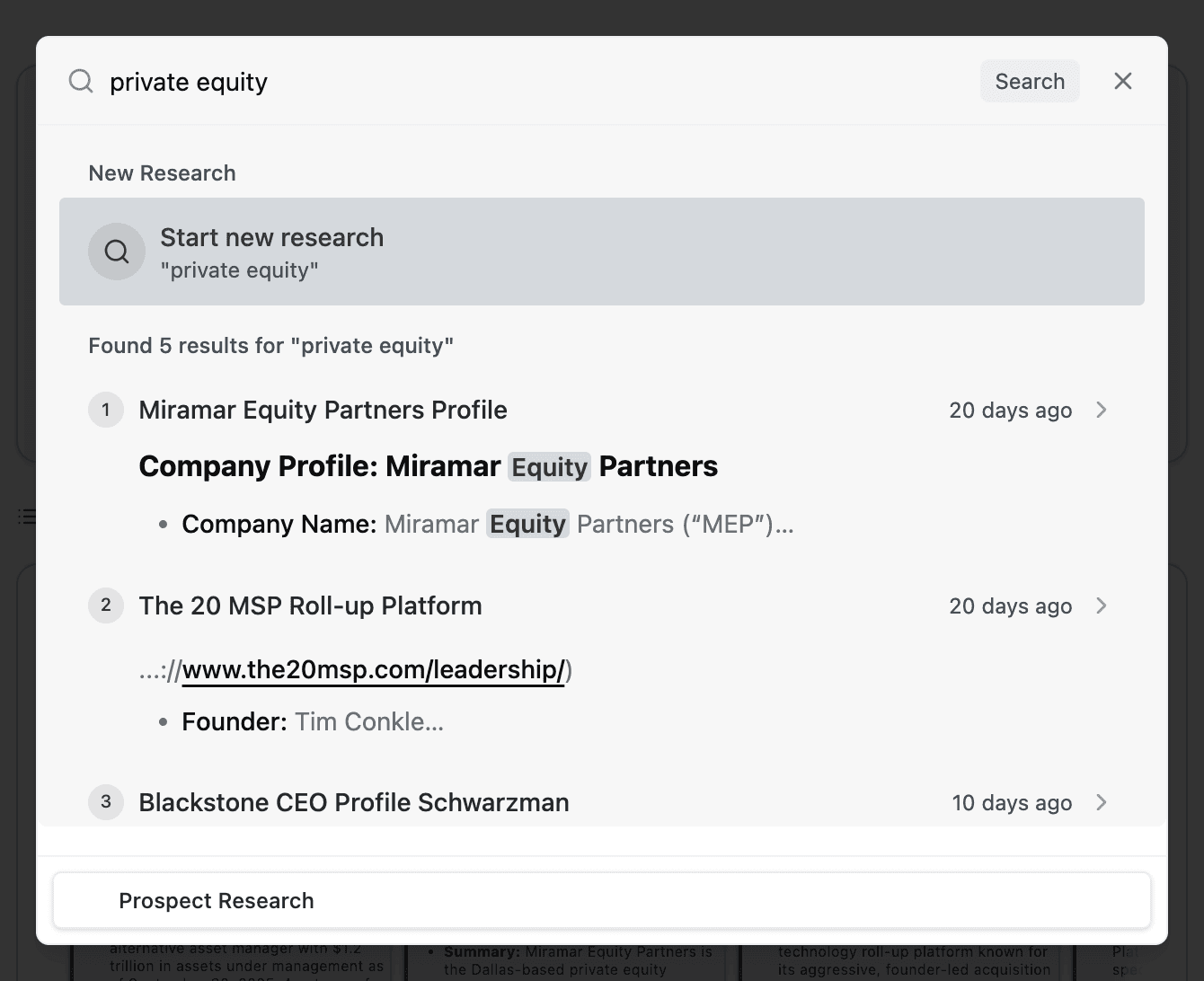
Results appear instantly as you type, with your search terms highlighted in bold. Each result shows a preview snippet, often including key data points like company names, financial figures, or source citations, so you can identify the right research without opening every result. The numbered indicators (1, 2, 3, etc.) help you quickly scan and identify results in the list.
Starting New Research from the Command Palette
The Command Palette isn't just for finding past work. It's also your fastest path to new research. Type your query directly into the search field, and the first option that appears will be Start new research with your query shown below it. Press Enter or click this option, and your research begins immediately.
This approach is especially powerful when you're working across multiple tabs or reviewing existing research and suddenly need to investigate something new. Instead of navigating back to the Workspace and locating the input field, you simply press Cmd+K, type "Research Blackstone's recent acquisitions," and press Enter.
Choosing Your Research Configuration
At the bottom left corner of the Command Palette, you'll see a configuration selector button showing your currently selected research mode. Click this button to reveal a dropdown with all available configurations, including options like Prospect Research, Lead Qualification, List Identifier, and Legal Diligence (depending on your account setup).

Select a different configuration before starting new research, and NewBizBot will apply that mode's specialized prompts and output structure. This is particularly useful when you're switching between tasks: qualifying a batch of leads in the morning, then pivoting to deep prospect research in the afternoon.
You can also cycle through configurations without opening the dropdown by pressing Cmd+\ (Mac) or Ctrl+\ (Windows/Linux).
Keyboard Navigation Within the Palette
The Command Palette is designed for keyboard-first interaction. Once open:
| Key | Action |
|---|---|
↑ / ↓ | Move through results and options |
Enter | Select the highlighted item |
Escape | Close the palette |
Cmd/Ctrl+K | Pressing the shortcut again while open will close the palette |
Power users often develop a rhythm: Cmd+K, type a few characters, ↓ to the right result, Enter. The entire interaction takes under two seconds.
Understanding Search Result Previews
When searching your history, each result shows more than just a title. The preview includes the query title, a timestamp showing when the research was conducted, a summary snippet containing key information from the research output, and source indicators referencing Bloomberg, LinkedIn, company filings, or other sources.
These previews help you distinguish between similar searches. If you've researched "Apple" multiple times, the previews showing "quarterly earnings" versus "executive compensation" versus "supply chain partners" help you find exactly what you need.

Documentation Search
When you're searching in the Command Palette, it also searches NewBizBot's documentation. Documentation results appear in their own section below your research history results. Click a documentation result to open it in a new tab, giving you quick access to help without leaving your current work context.
Tips for Effective Palette Use
Build a mental shortcut vocabulary. After a few days of use, you'll remember that g w takes you to the Workspace and g g opens Grid. These shortcuts bypass the palette entirely for navigation.
Use specific search terms. Searching "Microsoft" might return hundreds of results. Searching "Microsoft Azure partnership 2024" narrows it down immediately. The full-text search rewards specificity.
Let recent activity guide you. If you researched something in the last few hours, it's probably visible in Recent Activity without typing anything. Scan the list before you start searching.
Switch configurations proactively. Before starting a new research session, check that the configuration selector shows the right mode. Switching after you've already typed your query means restarting your flow.
When the Command Palette Excels
The Command Palette shines in specific workflow moments. When a client mentions a company name during a call, Cmd+K, type the name, Enter, and research is running before the conversation moves on. When you remember researching a prospect last month but can't recall the exact name, search by industry, location, or any detail you remember.
For wealth managers and investment bankers who process high volumes of prospects, the Command Palette transforms what would be dozens of mouse clicks into a handful of keystrokes. That efficiency compounds throughout your day.
Troubleshooting
Command Palette won't open? Some browser extensions intercept Cmd/Ctrl+K for their own features. Check your extensions, particularly note-taking tools and tab managers. Alternatively, click the Search button in the header. It opens the same interface.
Search returns unexpected results? Remember that the palette searches full text, not just titles. A search for "CEO" will return any research that mentions a CEO, not just profiles of CEOs. Use more specific terms to narrow results.
Configuration changes don't seem to apply? Make sure you select the new configuration before typing your query and pressing Enter. The configuration selector affects new research only, not searches of existing history.
