
Recent Activity
Find and build on previous research sessions to accelerate your work
Your Research, Always Within Reach
Your search history in NewBizBot is not just a log—it's a research asset you can build on. Every prospect profile, company analysis, and batch qualification you've run lives here, searchable and ready for instant recall. When a partner asks about research from last month or you need to verify a detail before a client call, Recent Activity puts that intelligence at your fingertips in seconds.
The feature serves three distinct workflows. Some users need to pull up specific research they've already done—checking if they've profiled a company before starting fresh. Others use it to build on previous investigations, clicking through to related entities discovered in earlier sessions. And power users treat it as a growing intelligence database, tracking how companies and prospects evolve across multiple research sessions over time.
Accessing Your History
Recent Activity appears in two places, designed to fit naturally into your workflow.
The Sidebar displays your most recent sessions as a scrollable list under "Recent Activity" with a count of total items. Individual research profiles and grid searches appear together in chronological order. Click any item to open the full results immediately.
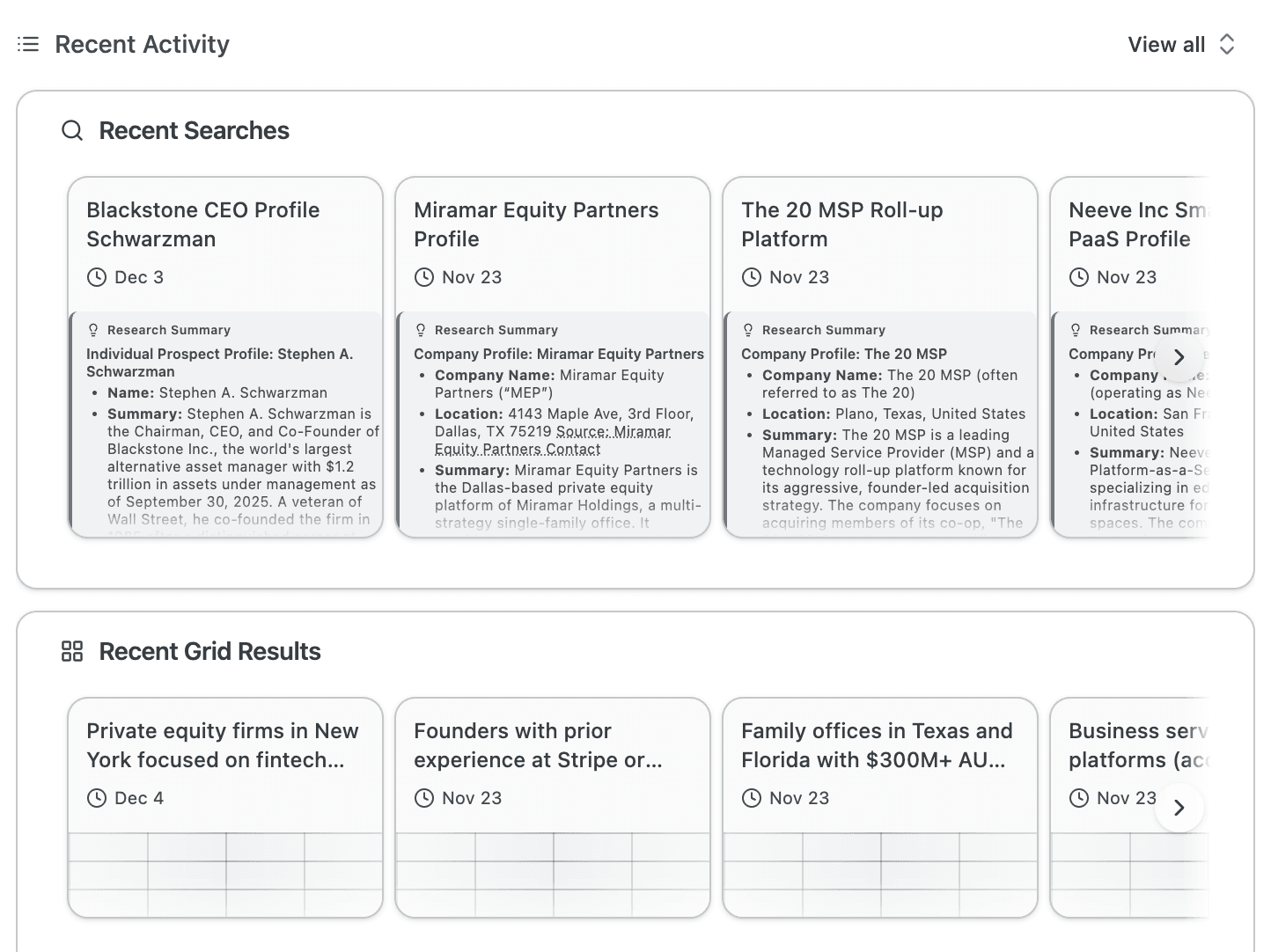
The Workspace View shows your history as horizontal card carousels beneath the main search input. Recent Searches displays individual prospect and company profiles, while Recent Grid Results shows your batch qualification searches. Each card previews key information—profile summaries, company names, dates—so you can identify the right session at a glance.
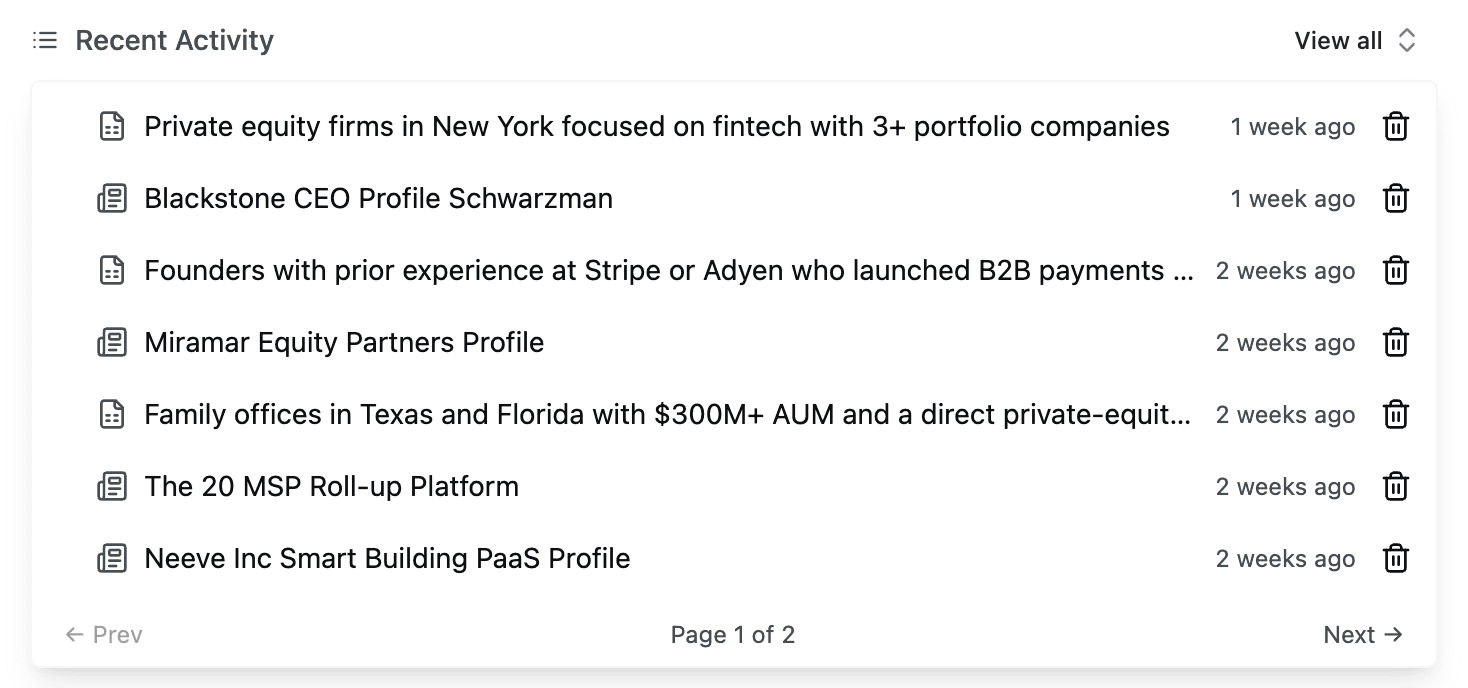
To see everything, click View all in the Recent Activity header. The selector expands to the full workspace width, replacing the card carousels with a paginated list. This view supports combined search and grid history, letting you find any session regardless of type.
Understanding What You See
Each history item displays differently depending on whether it's individual research or a grid search.
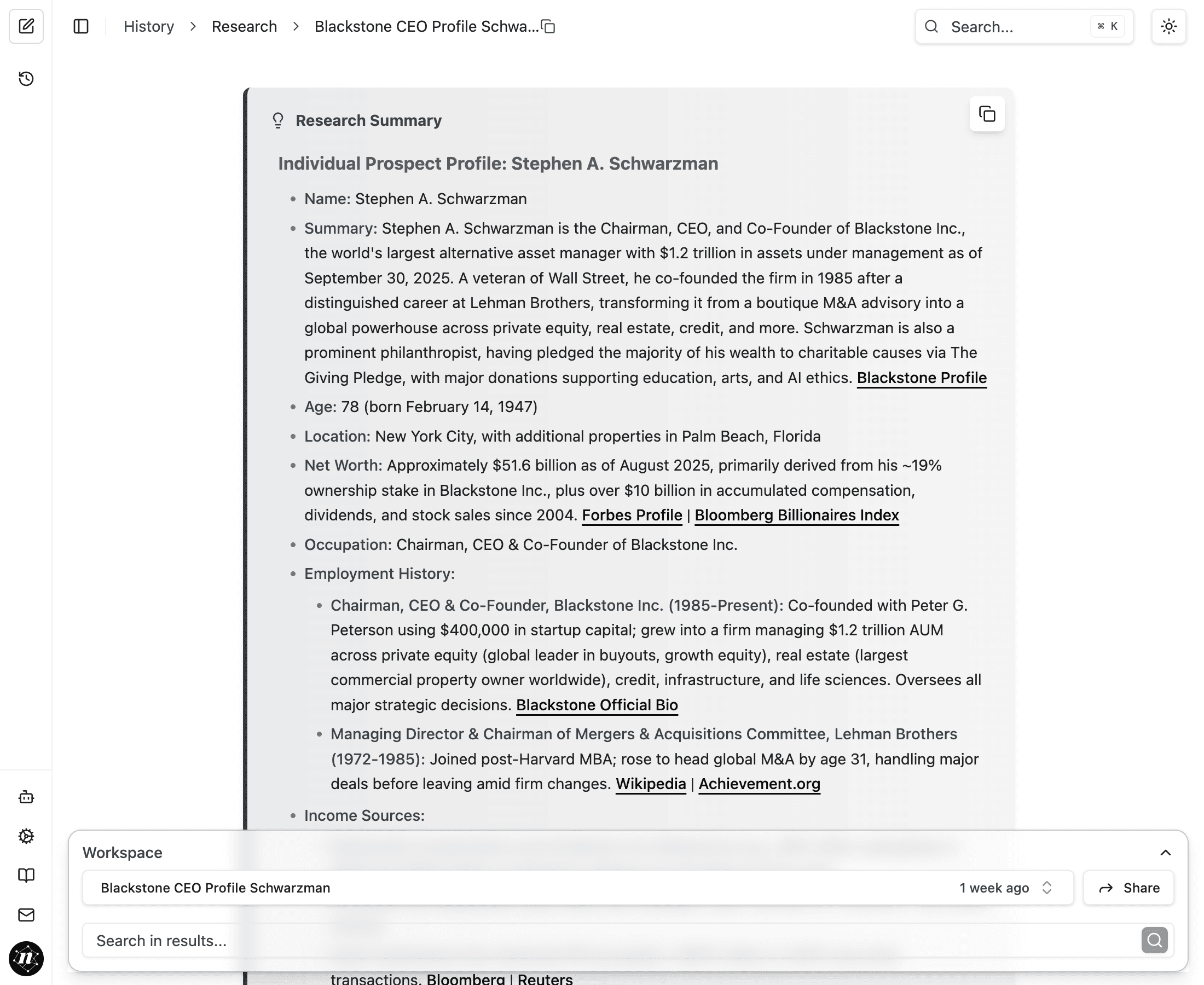
Individual Research Profiles show the entity name, date, and a Research Summary preview. The preview includes structured fields like Name, Summary, Location, and key data points. Source links appear inline—clicking them opens the original reference so you can verify any fact. When you open a profile, you see the complete research with all sections: employment history, net worth, board affiliations, income sources, and related entity suggestions.
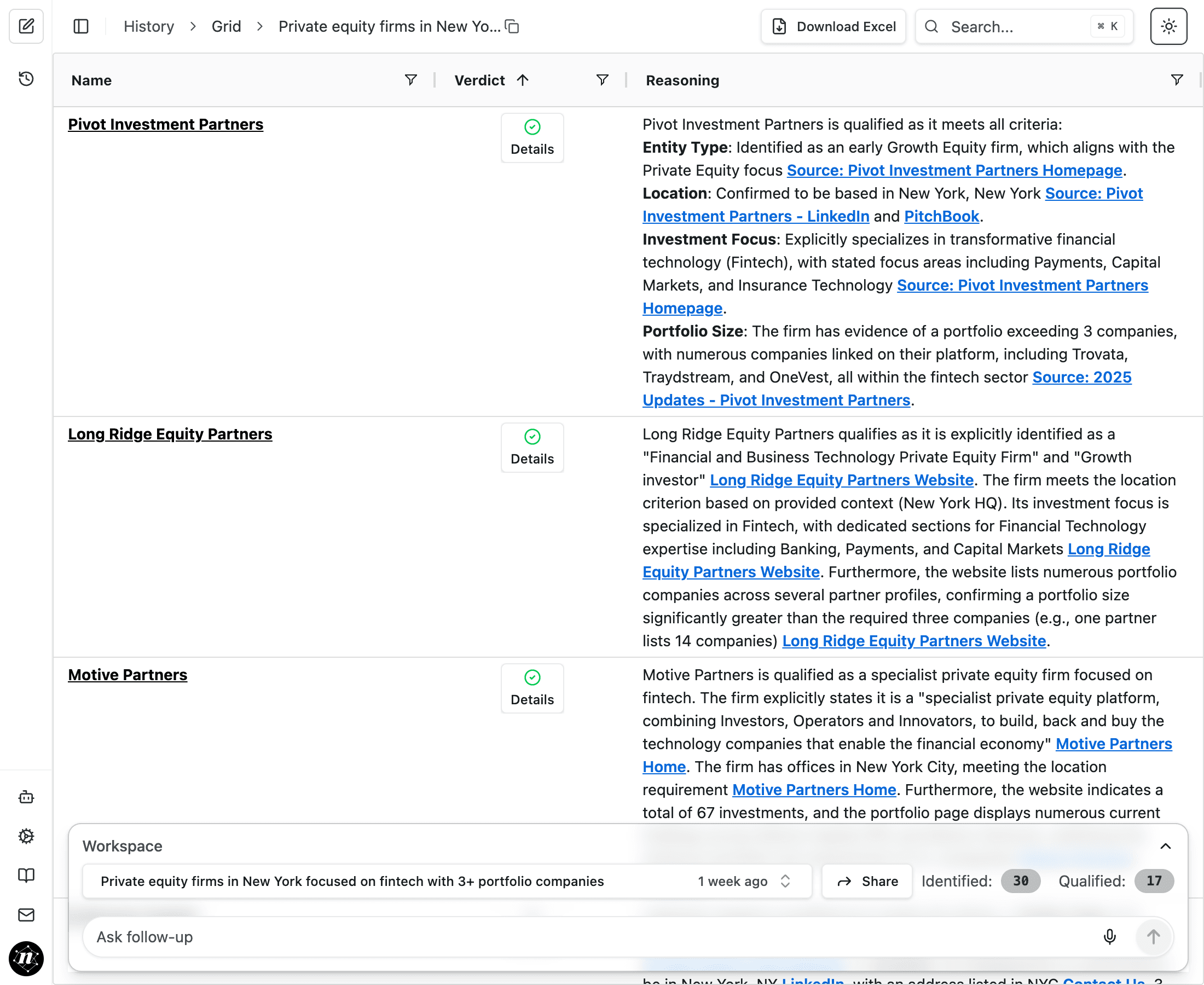
Grid Results show the search criteria, date, and summary statistics. Opening a grid displays a table with Name, Verdict, and Reasoning columns. Qualified entities show green checkmarks; disqualified ones show red X marks. Each row has a Details button that expands to reveal the full qualification reasoning with source citations. The statistics bar shows counts for Identified, Evaluated, and Qualified entities—for example, "Identified: 61, Evaluated: 61, Qualified: 29."
Common Use Cases
Find Research You Already Did
Before starting a new prospect profile, check if you've researched this person or company recently. Click "Recent Activity" in the sidebar or use the keyboard shortcut, then search by name or topic. If you profiled this entity two weeks ago, you can review those findings instead of re-running the search. This prevents duplicate work and ensures you're building on existing intelligence rather than starting from scratch.
Build on Previous Investigations
Your initial research on a company often surfaces competitors, investors, or executives worth investigating next. Open the previous session and scroll to the bottom where Related Entity Suggestions appear. These clickable links launch new research sessions on companies, people, or markets mentioned in your results. Researching one private equity firm might reveal five portfolio companies and three co-investors—each suggestion is one click away from a full profile.

Prepare for Client Meetings
Ten minutes before a call, you need to refresh your memory on a prospect you researched last month. Search Recent Activity for the client's name, and the full profile appears in the preview panel. Review net worth, board affiliations, philanthropic interests, and recent news. The time savings are substantial: 45 seconds to retrieve versus 10 or more minutes to re-research.
Track Research Over Time
For deal processes or ongoing client relationships, you may research the same entity multiple times. Filter your history to see all sessions on that company across different time periods. Comparing findings from March, April, and May reveals changes in leadership, financials, or strategy that matter for your analysis.
Working with Individual Profiles
When you open a completed research profile from your history, the full Research Summary loads with all original formatting and sources intact. The profile is organized into sections appropriate to the entity type.
For individuals, expect to see Name, Summary, Age, Location, Net Worth, Occupation, Employment History, Income Sources, Family Dynamics, Board Affiliations, Interests, Real Estate Holdings, Public Stock Holdings, Recent News, and Additional Information covering philanthropy, education, and political activity. Each section includes hyperlinked sources—Bloomberg, Forbes, Wikipedia, SEC filings, company websites—that you can click to verify any data point.
For companies, profiles include Company Name, Location, Summary, Industry, CEO/Top Executive profiles, Founder information, Ownership Structure, Major Investors, and relevant financial metrics. Source citations appear throughout, linking to primary documents and news coverage.
Below every profile, you'll find Related Entity Suggestions—a list of people, companies, and organizations mentioned in the research. Each suggestion includes a brief description of the relationship and serves as a launchpad for continued investigation.
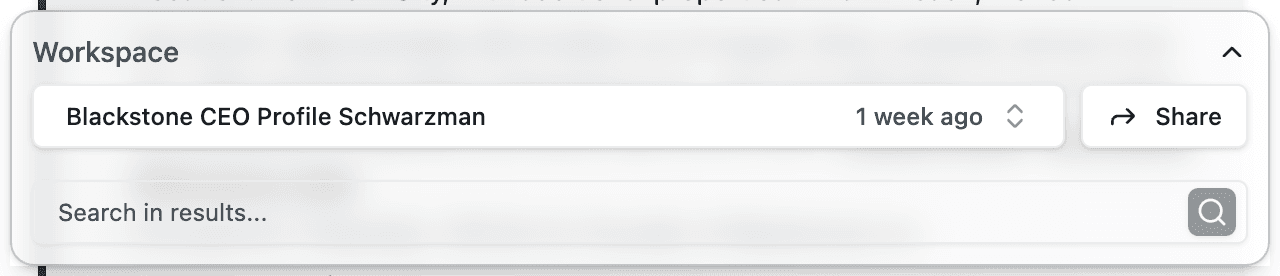
The workspace panel at the bottom shows the profile name, timestamp (e.g., "3 minutes ago" or "1 week ago"), and a Share button for generating public links. The Search in results field lets you find specific information within the profile without scrolling.
Working with Grid Results
Grid searches produce tables of qualified and disqualified entities based on criteria you specified. Opening a grid from your history displays the full results with all original reasoning preserved.
The table has three main columns. Name shows the entity identifier. Verdict displays a green checkmark for qualified entities or a red X for disqualified ones. Reasoning provides the qualification logic, explaining exactly why the entity passed or failed each criterion.
Click Details on any row to expand the full reasoning. For qualified entities, you'll see numbered criteria with evidence and source links. For example: "1) He is a co-founder of Katanox, meeting the Individual Founder criterion. 2) He was previously an employee at Adyen, where he spent five years on the product team, as detailed in the source article." Disqualified entities show which criterion failed and why.
The Download Excel button in the top bar exports the entire grid—useful for sharing results with colleagues who don't use NewBizBot or for importing into your CRM.
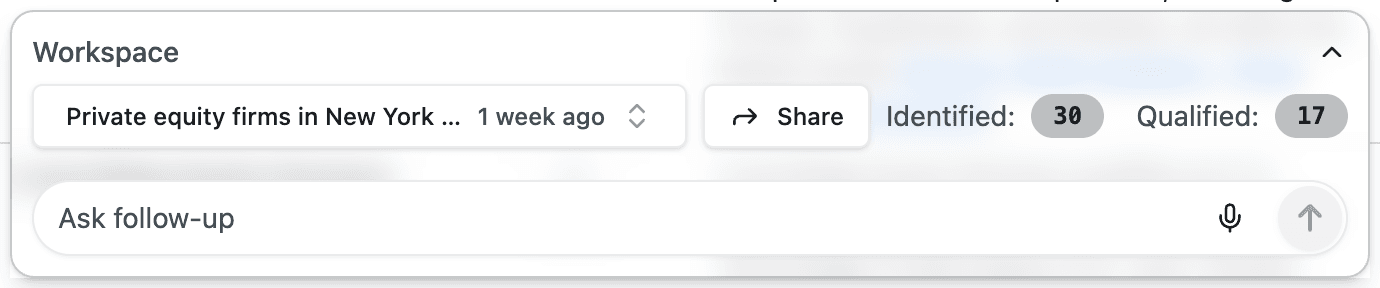
Grid history preserves the statistics from the original search: how many entities were identified, evaluated, and ultimately qualified. The "Ask follow-up" field at the bottom lets you continue the search with additional criteria or request more entities matching the original parameters.
Keyboard Shortcuts
These shortcuts let you navigate your history without reaching for the mouse:
- G + H — Jump to Recent Activity (Global History)
- S — Open/close the View all selector when in the workspace
- 1–9 — Select the corresponding item in the View all list
- ← / → — Paginate through the selector without touching the mouse
- ⌘ K — Open command palette for quick navigation to any feature
Best Practices
Search your history before starting new research. You may have already profiled this entity, and reviewing existing work takes seconds compared to re-running the search.
After each session, scan the Related Entity Suggestions at the bottom. These follow-up opportunities often represent the most valuable next steps—competitors you should understand, executives worth profiling, or investors to track.
Review your past week's research periodically. Patterns emerge across sessions: recurring names, overlapping investments, and connections between seemingly unrelated entities. This cross-referencing transforms individual searches into cumulative intelligence.
For long-term projects, use history as a chronological record. Filter by client name or deal name to see all related research in sequence. This builds institutional knowledge that survives personnel changes and project handoffs.
Why This Matters
NewBizBot's search history transforms the platform from a single-query tool into a growing intelligence database. Every search adds to your knowledge base, and past research becomes increasingly valuable as connections emerge across sessions. The wealth manager who researched a family office last month can instantly surface those findings when the same client calls. The investment banker who qualified 61 family offices can revisit that grid, download the qualified list, and continue outreach without reconstructing the analysis.
Your history isn't archival—it's operational. Use it.