
Sharing Research with Your Team
Learn how to share your NewBizBot research findings with teammates, clients, and collaborators using secure public links.
What Sharing Does
Sharing creates a public link to a research result so teammates, clients, or collaborators can view it without a NewBizBot account. Shared links are read-only, and you can revoke them at any time.
What You Can Share (and Where to Find It)
You can share wherever you see a Share button in the app. That typically includes your Recent Activity items and the results panels for both individual research and grid work.
- Individual research results (single search): Share one prospect/company profile when someone needs a specific answer or write-up.
- Research collections (threads): Share a related set of searches together when you want to hand off a full mini-report (for example, a competitor set you worked through in one session).
- NewBizBot Grid workspaces: Share a grid when you want someone to review the full qualification table, including verdicts and reasoning.
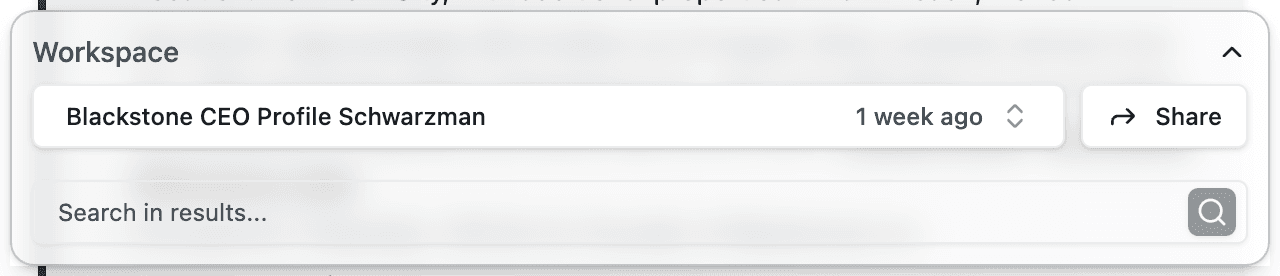
Create a Share Link
Share a Research Result (Single Search or Thread)
- Open Recent Activity from the left sidebar, or open the research result you want to share.
- Click Share, then choose Create Share Link.
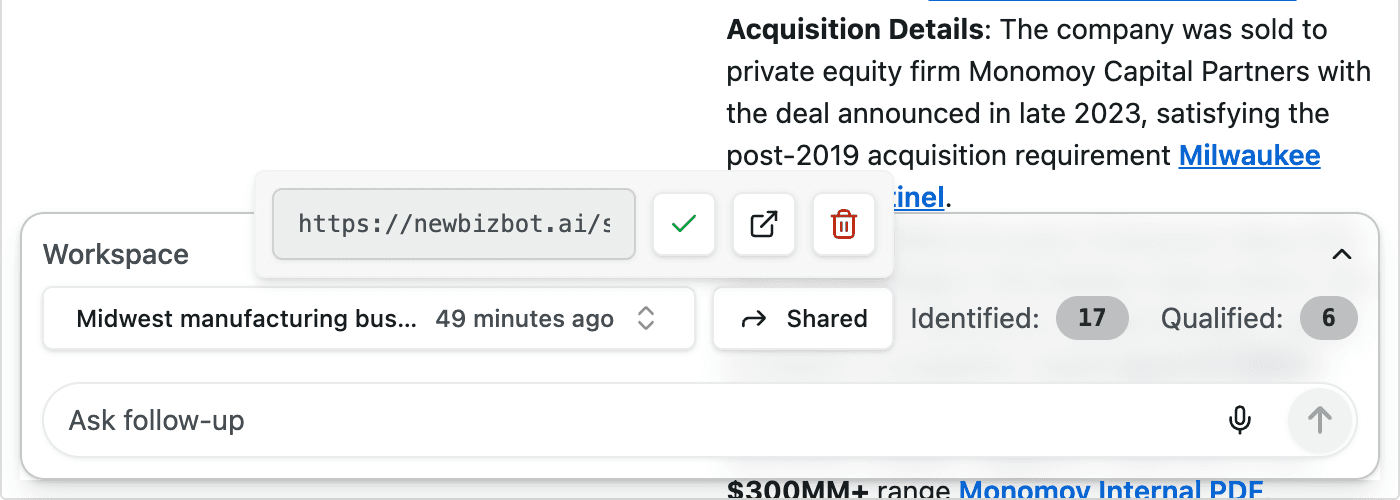
- The link is copied to your clipboard, ready to paste into email, Slack/Teams, a doc, or a deal room.
Share a Grid
- Open the grid workspace you want to share (from Grid or Recent Activity).
- Click Share and create the link.
- Use the share menu to copy, open, or revoke the link whenever needed.
If you’re sending a link to someone else, add one sentence of context and the next step so they know what to look for.
Team — here’s the research for the pipeline review:
[Share Link]

Please skim the summary + key sources before tomorrow’s call.
What Recipients See
Recipients land on a clean, public page that contains the shared content with formatting and source links intact. Your personal information and account details do not appear on shared pages, and recipients cannot edit anything.
Example Share Links
If you want to see what shared pages look like in practice, these examples show both grid shares and single-research shares. Each one opens a public, read-only view.
Grid Shares
- Logistics and supply-chain software (SoCal, $5M–$50M ARR, sales hiring) is an example of a grid-style share where recipients can review the full table of results and reasoning.
- Healthcare services PE firms ($500M+ AUM, under $5B AUM, recent exits) shows how grids work well for a criteria-driven market scan.
- B2B SaaS growth equity (fund size $500M–$2B, Fund III+) is another example of sharing a grid when you want someone to evaluate a list with consistent qualification logic.
Research Shares (Single Search)
- Marc Benioff: holdings and philanthropy is an example of sharing a single research profile when someone needs one specific write-up.
- Stephen Schwarzman (Blackstone): CEO profile shows a second profile share with the same public formatting and sources.
- Miramar Equity Partners: profile is an example of sharing a firm/company profile directly.
Manage and Revoke Shares
As your share history grows, the easiest way to stay organized is to manage shares from Settings & Preferences → Manage Share Links. From there you can filter by share type, copy a link again, open it to preview what recipients see, or revoke access instantly.
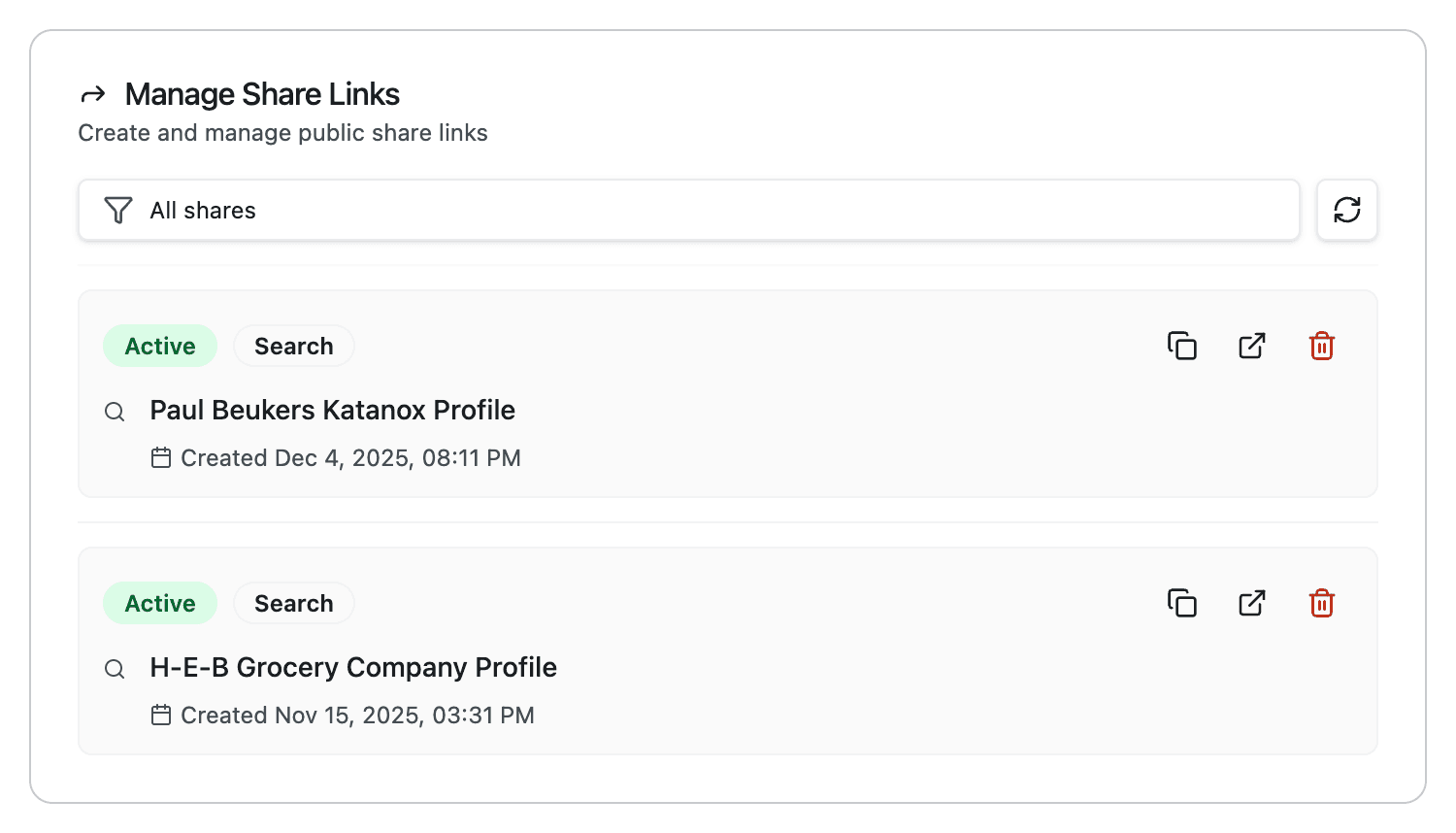
Revoking is the right move when a project ends, a link was shared too broadly, the research is no longer relevant, or you want to reduce the surface area of what’s publicly accessible.
Share Prompt Setups and Speed Up Onboarding
Sharing research links is great for day-to-day collaboration, but teams often get even more leverage by standardizing how research is run. In NewBizBot, that “how” lives in your prompt configurations, which control the research approach, structure, and defaults used across workflows.
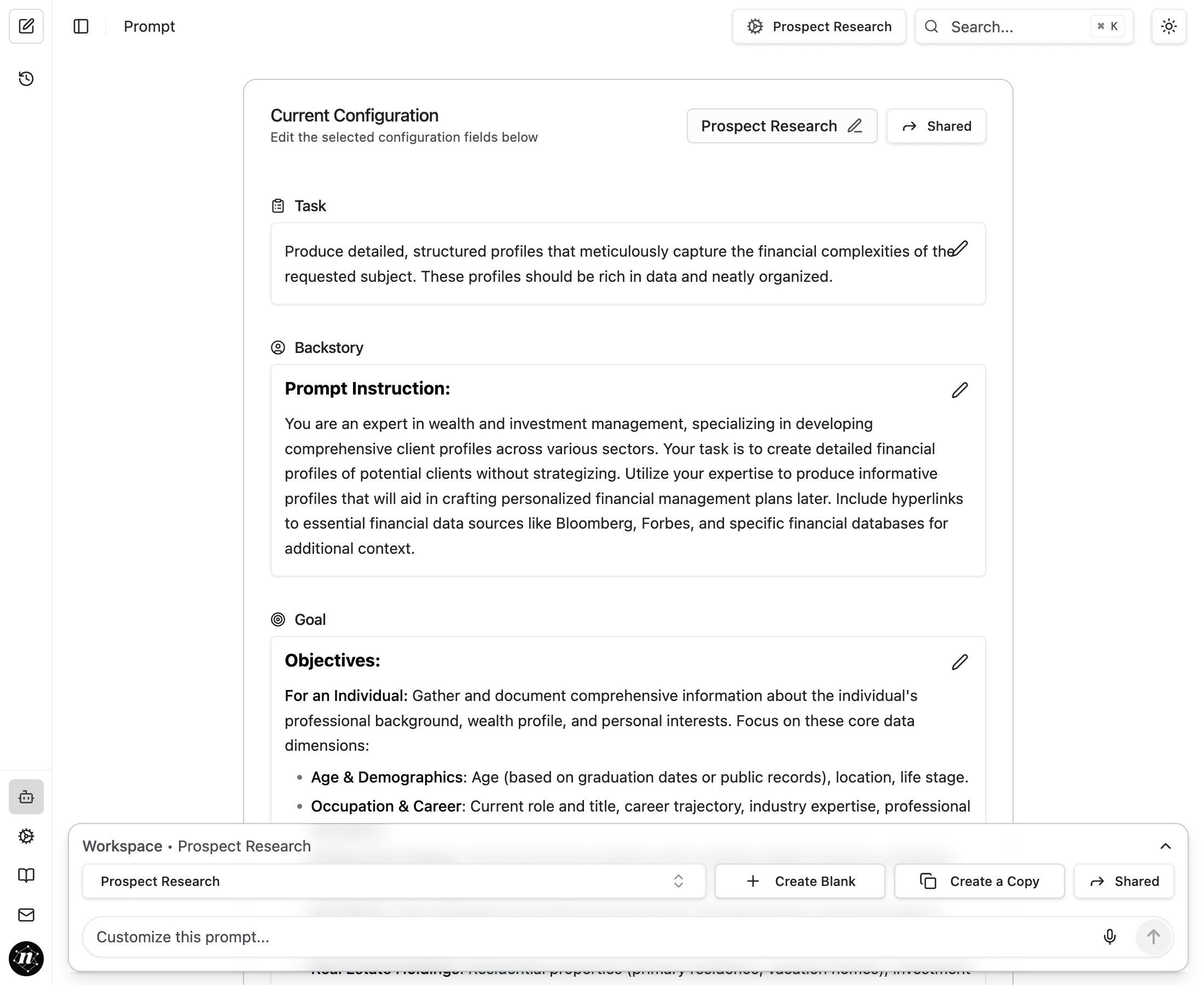
If you’re onboarding new teammates, the simplest way to share prompt setups is to generate an onboarding link that automatically applies your team’s preferred configurations when someone signs up. This avoids long setup instructions and helps the whole team produce consistent outputs.
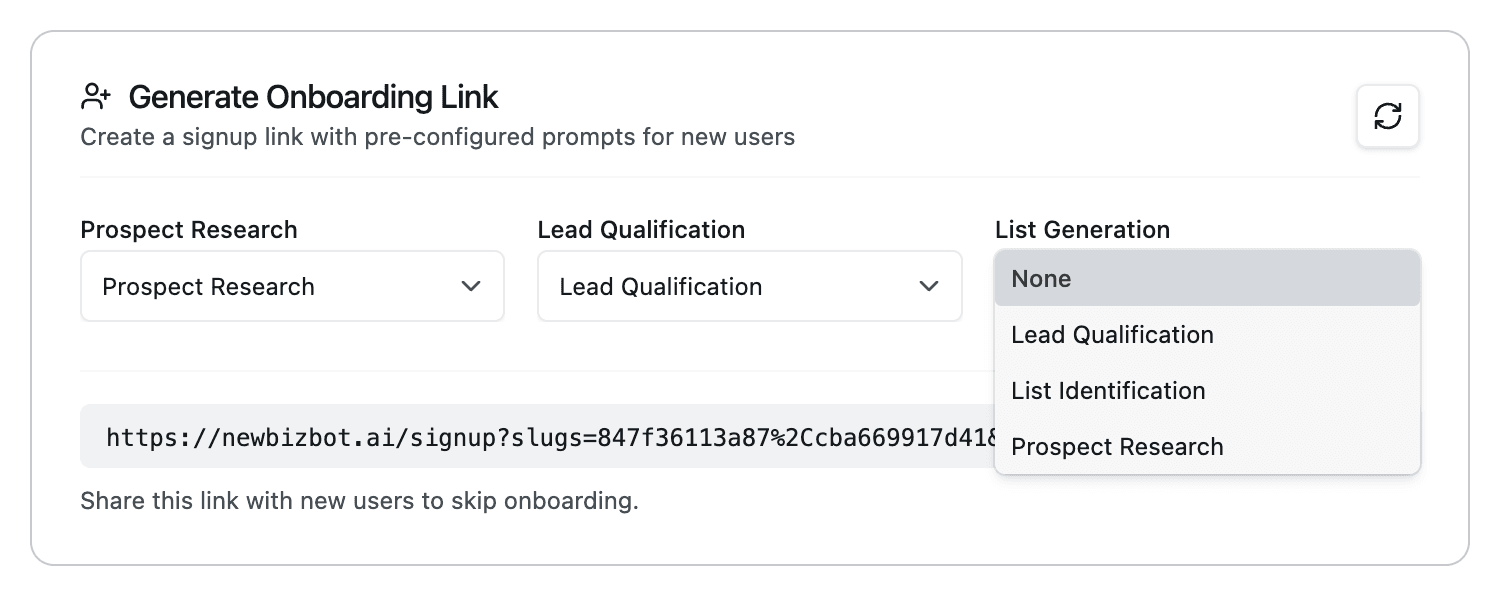
To set this up, go to Settings & Preferences → Generate Onboarding Link, select the configurations you want new users to inherit, and share the generated signup URL. For more detail, see Settings & Preferences and Prompt Configuration.
Sharing Tips
For internal teammates, a short note about why the research matters and what decision it should inform tends to be more useful than forwarding a link with no context. For clients or external partners, share only what supports the conversation you’re having, and consider revoking access when the engagement is complete.
Troubleshooting
Share button not appearing: Make sure you’re signed in, and make sure you’re viewing your own results. Sharing is only available for results that belong to your account.
Link not working: Confirm the link hasn’t been revoked, and try copying it again from the Share menu or the Manage Share Links page.
Content looks different than in-app: Shared pages are formatted for public viewing and are read-only, so some interactive controls from the app won’t appear.