
User Interface Guide
A complete guide to NewBizBot's interface—from your first research to advanced customization
Getting Started with NewBizBot
NewBizBot turns research questions into verified intelligence. Ask about a person or company, and receive a comprehensive profile with sources you can verify—typically in under a minute.
Your First Research
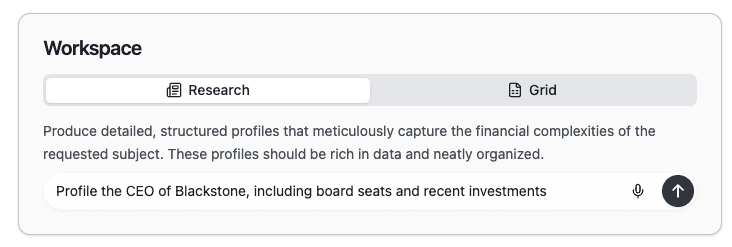
When you open NewBizBot, you'll see a simple workspace with a text field in the center. This is where you ask your questions.
Try typing something like:
"Profile the CEO of Blackstone, including board seats and recent investments"
Press Enter, and NewBizBot begins searching. You'll see the progress as it works—searching multiple sources, reading pages, and compiling findings. Within 30-60 seconds, you'll have a detailed profile with direct links to verify every fact.
Understanding What You See
The workspace has four main areas you'll use regularly.
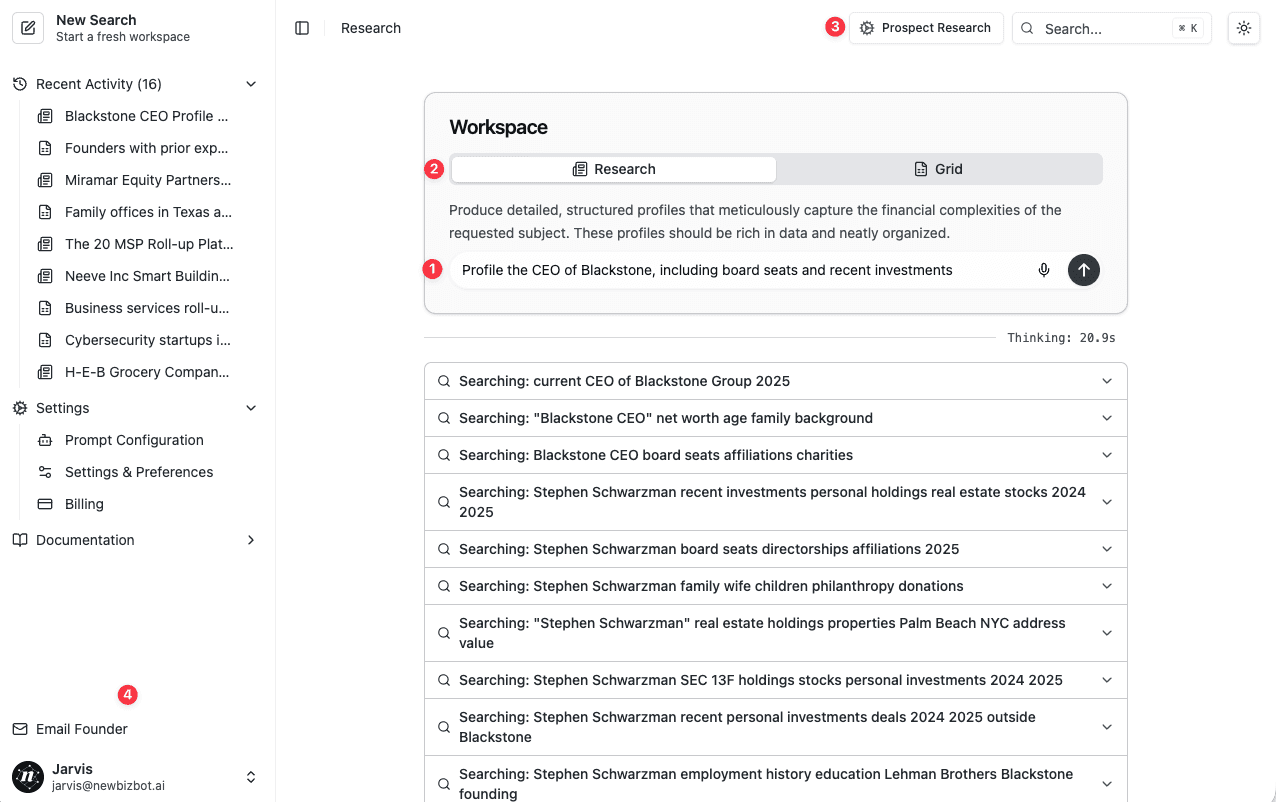
The Input Field sits at the center of your workspace. Type any research question in plain language—no special syntax required. The microphone icon lets you speak your query instead of typing.
The Mode Toggle appears above the input field with two options: Research and Grid. Research mode is for deep investigation of a single person or company. Grid mode evaluates many entities against your criteria simultaneously—useful when you need to qualify a list of prospects.
The Configuration Selector (top right, showing "Prospect Research" by default) determines how NewBizBot approaches your research. Different configurations are optimized for different tasks: creating detailed profiles, qualifying leads against specific criteria, or discovering new sources of prospects.
The Sidebar (left side) shows your Recent Activity—every search you've run—plus access to Settings and Documentation. Click any previous search to pick up where you left off.
The Research Results
When NewBizBot completes a search, your results appear in a structured format designed for quick scanning and easy verification.
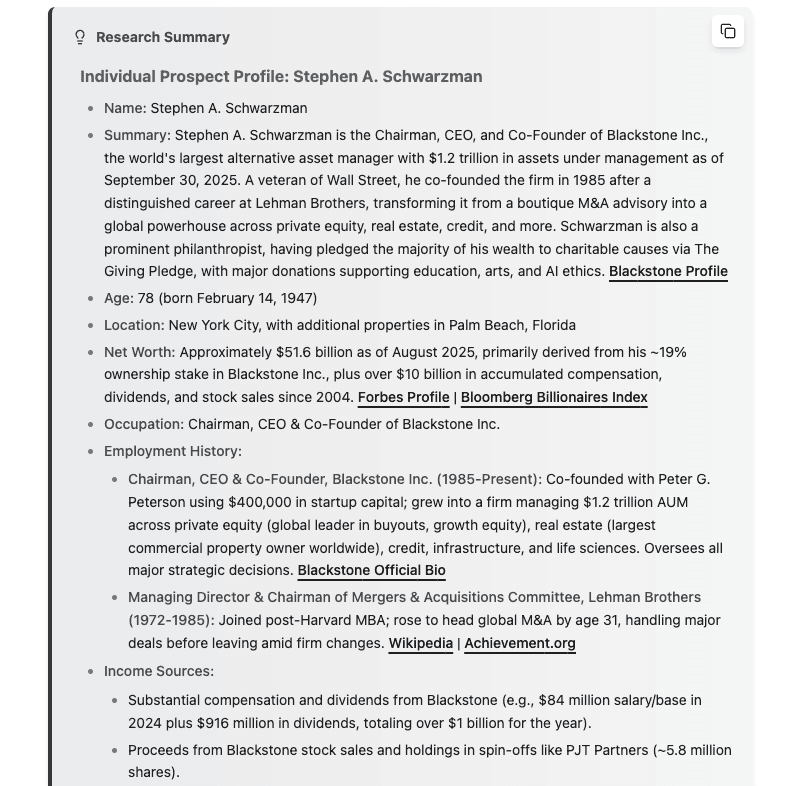
At the top, you'll see a Research Summary with the key facts organized by category: name, location, background, financial information, and more. Every fact includes a clickable source link—this is how you verify the information before using it in client materials or investment decisions.
Below the summary, expandable sections show you exactly how NewBizBot found the information. You can see the web searches it performed, the pages it read, and how it synthesized the findings. This transparency matters when your work requires due diligence.
After the main profile, you'll find a "Find contact information" button and suggestions for related searches. If you researched a person, you might see their company, their investors, or their board connections as one-click follow-up options.
Two Ways to Research
NewBizBot offers two distinct research modes, each designed for a different situation you'll encounter in your work.
Research Mode: In-Depth Profiles
Research mode is your default. Use it when you need comprehensive intelligence on a specific person or company—before a meeting, during due diligence, or when preparing client materials.
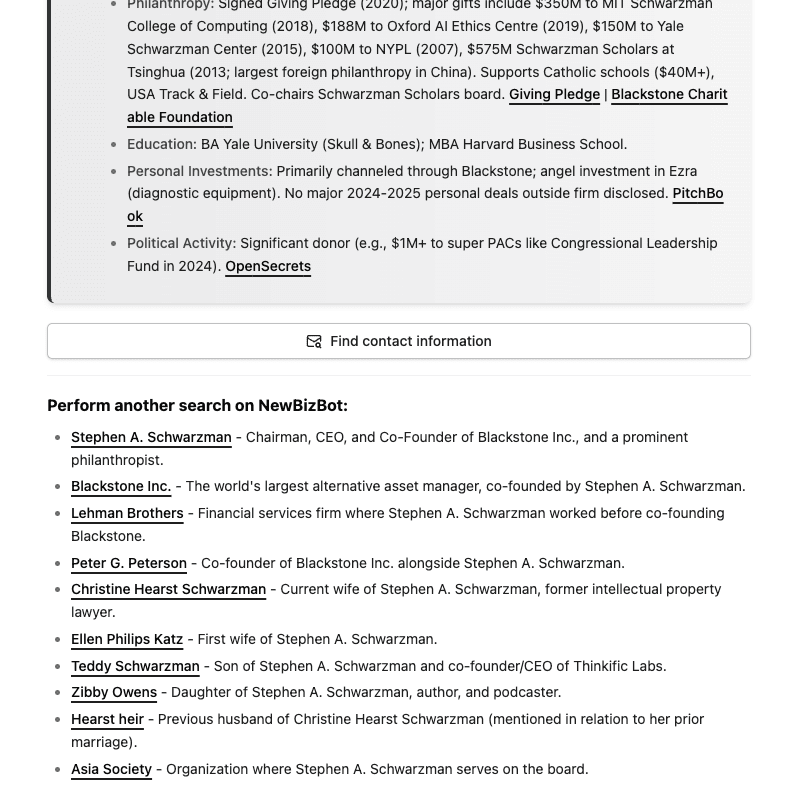
In Research mode, NewBizBot conducts 15-20 searches to build a complete picture. For an individual, you might receive their employment history, estimated net worth, real estate holdings, board seats, educational background, family connections, and philanthropic involvement. For a company, expect founding history, ownership structure, financial metrics, key executives, investors, and recent news.
The depth of research depends on what information is publicly available and what you ask for. Be specific about what matters for your use case:
"Profile Sarah Chen, CEO of TechVentures, with emphasis on her investment track record and LP relationships"
is more useful than simply:
"Profile Sarah Chen"
Grid Mode: Evaluate Many Entities at Once
Grid mode becomes available when you select Lead Qualification or List Identification from the configuration menu. Use it when you need to qualify a segment or build a prospect list.

In Grid mode, you describe the type of entity you're looking for rather than naming specific ones. NewBizBot then discovers entities matching your criteria and evaluates each one.
For example:
"Venture capital firms focused on climate tech with at least one $200M+ fund raised since 2021"
NewBizBot will search directories, databases, news articles, and industry associations to identify relevant firms. It then researches multiple entities in parallel and provides a verdict (qualified or not qualified) with specific reasoning and sources.
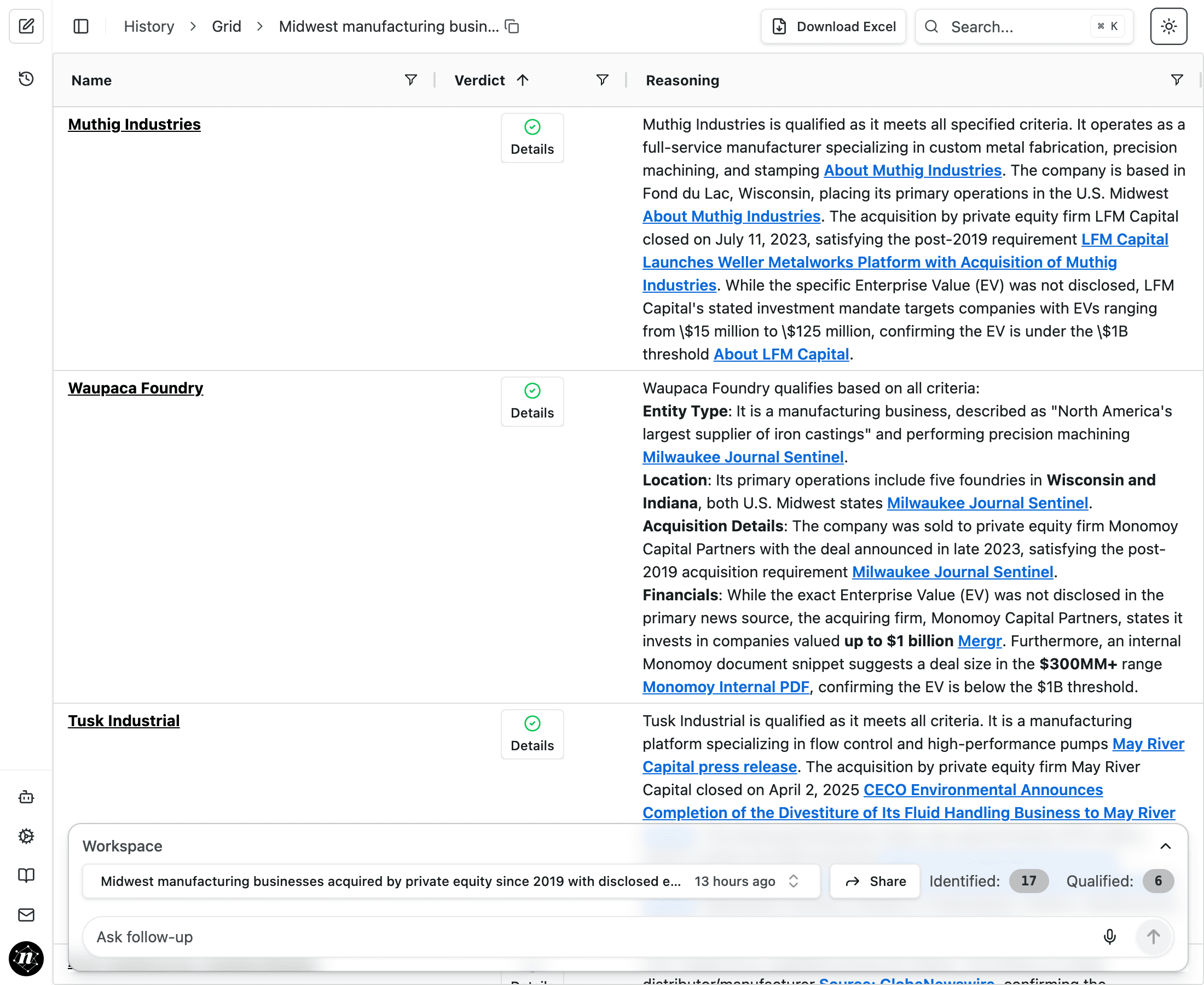
The Grid view displays results in a sortable table. Click any column header to sort. The "Reasoning" column shows the logic that informed each verdict. Click "Details" next to any entity to dive deep into comprehensive research about that target. When you're finished, click "Download Excel" to export everything for your CRM or further analysis.
When to Use Each Mode
Research Mode
Deep investigation of a single person or company. Best for meeting prep, due diligence, and comprehensive profiles.
Grid Mode
Evaluate many entities at once. Best for prospect qualification, market segment analysis, and batch processing.
Use Research mode when you:
- Have a specific person or company you need to learn about
- Are preparing for a meeting or call
- Need comprehensive due diligence on a known target
- Want to explore an entity's network and relationships
Use Grid mode when you:
- Need to identify new prospects matching specific criteria
- Want to qualify a market segment (e.g., "healthcare software companies in the Midwest")
- Have criteria-based questions like "Which firms meet our investment thesis?"
- Need to process a batch of entities against qualification requirements
What You Can Research
The configuration selector in the top right of your workspace determines how NewBizBot approaches your research. Each configuration is optimized for a specific type of question.
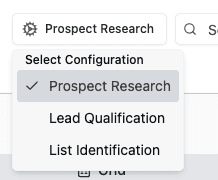
Prospect Research (Default)
Prospect Research creates comprehensive profiles of people or companies. This is your go-to for client preparation, meeting prep, and general intelligence gathering.
For individuals, expect:
- Background and career history
- Current role and responsibilities
- Estimated net worth and income sources
- Real estate and investment holdings
- Board seats and advisory roles
- Educational background
- Family connections (spouse, children)
- Philanthropic involvement
- Recent news and developments
For companies, expect:
- Founding history and ownership structure
- Key executives with brief backgrounds
- Financial metrics (revenue, funding, valuation)
- Investor and backer information
- Customer base and market position
- Recent transactions, partnerships, or news
- Competitive positioning
Example queries:
"Individual profile: Margaret Wilson, managing partner at Summit Capital"
"Company profile: Acme Healthcare Services, including ownership structure and recent M&A"
Lead Qualification
Lead Qualification evaluates a list of entities you provide against specific criteria. Paste a list of company names—from a conference attendee list, a government database, or your CRM export—and NewBizBot researches each one to determine whether it meets your requirements.
For each entity, you receive a clear "qualified" or "not qualified" verdict with specific reasoning. NewBizBot explains which criteria were met and which weren't, with source citations for every data point.
How to use it:
Simply paste your list of company names—the qualification criteria are already configured in your prompt settings. NewBizBot researches all entities in parallel and returns a qualification summary showing which prospects warrant your attention and why.
List Identification
List Identification helps you discover new sources of prospects. Provide a list of companies that represent your ideal customer profile, and NewBizBot finds directories, industry associations, conference attendee lists, and databases where similar companies appear.
This is useful when you want to expand your prospecting beyond familiar channels. Instead of manually searching industry websites, you receive a comprehensive report of vetted list sources—each with direct links and descriptions of what the directory contains.
How to use it:
Simply paste company names that represent your target profile. NewBizBot searches for industry associations, regulatory databases, conference attendee lists, and trade publications where these specific companies appear—giving you new prospecting sources your competitors may not know about.
Working with Results
NewBizBot delivers more than answers—it provides verifiable intelligence. Here's how to work with what you receive.
Understanding the Results Structure
Every research result follows a consistent structure designed for both quick scanning and deep verification.
The Research Summary presents findings in a structured format with clear categories. For a person, you'll see sections like Name, Summary, Age, Location, Occupation, Employment History, Net Worth, and so on. The summary is designed to give you the essential facts at a glance.
Source Citations appear as clickable links throughout the text. When you see underlined text like "Source: Bloomberg Profile" or "LinkedIn," you can click to open the original source and verify the information yourself. This matters when accuracy is critical—and in wealth management and investment banking, accuracy is always critical.
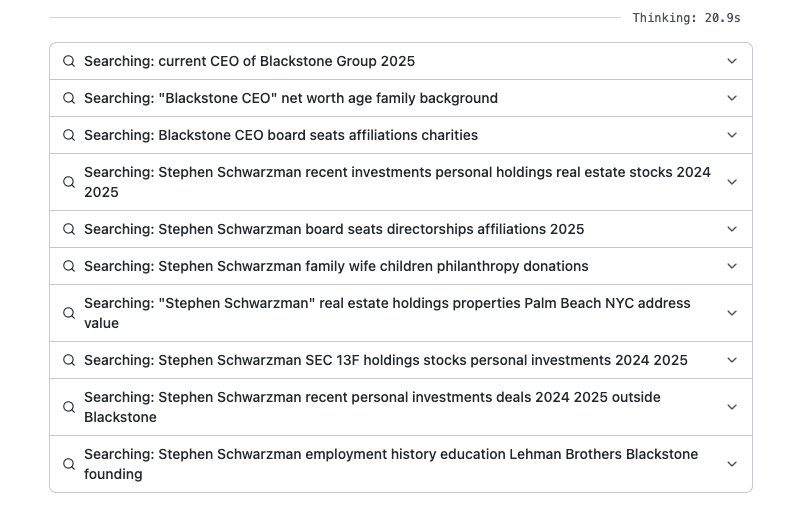
The Search Process section shows you exactly how NewBizBot reached its conclusions. You'll see the searches it performed, the pages it read, and how long the research took. This section is collapsible—click any item to expand the details.
Verifying Information
The single most important habit when using NewBizBot: verify facts that matter before acting on them.
NewBizBot aggregates information from public sources and applies judgment about what's relevant and accurate. It's remarkably good at this—but it's working from public information that may be outdated, incomplete, or occasionally incorrect.
For any fact you'll use in client communications or investment decisions, click through to the source. Confirm the information is current and correctly interpreted. This takes seconds and protects both you and your clients.
What to always verify:
- Financial figures (net worth, AUM, revenue)
- Current employment and titles
- Transaction details and dates
- Legal or regulatory matters
Sharing Your Research
NewBizBot makes it easy to share findings with colleagues or include them in deliverables.
Copy Results: Click the copy icon at the top of any Research Summary to copy the formatted text to your clipboard. Paste into emails, documents, or presentations.
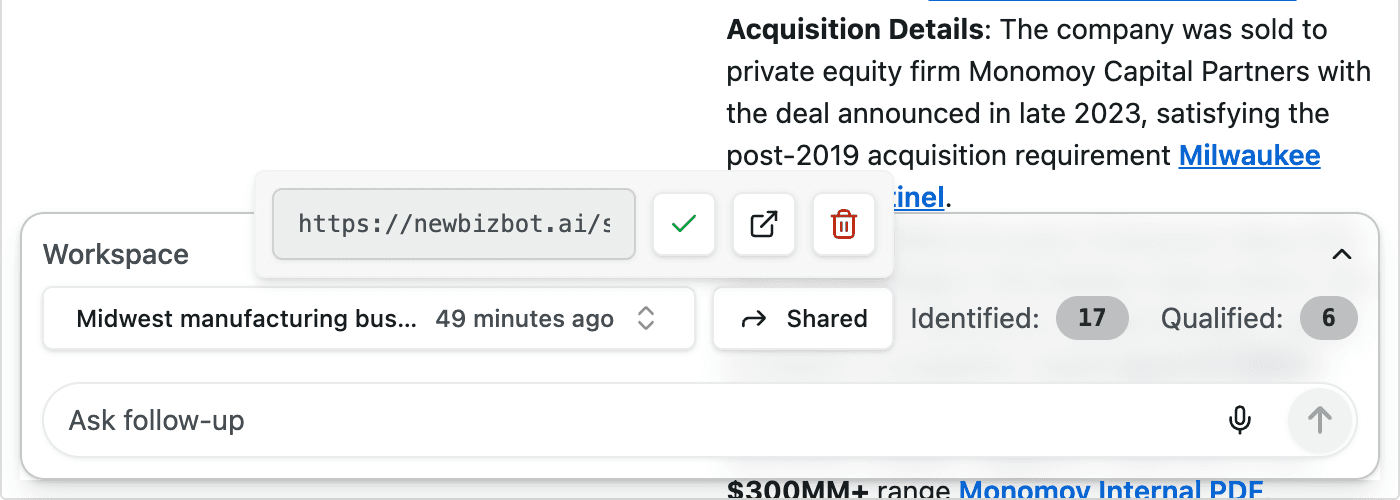
Generate Share Links: For any search result, you can generate a secure link that others can view without logging in. Find this in Settings & Preferences under "Manage Share Links." You control which searches are shared and can revoke access at any time. See the team collaboration guide for more details.
Download Excel (Grid mode): When using Grid mode, click "Download Excel" to export the complete results table. The export includes entity names, verdicts, and full reasoning text—ready for your CRM import or further analysis.
Building on Past Research
Every search you run is automatically saved to your Recent Activity. This history is more than a log—it's a research asset you can build on.
Click any previous search in the sidebar to return to it. You'll see the complete results exactly as they appeared. From there, you can run follow-up searches on related entities or simply review what you learned.
Your Recent Activity persists indefinitely. Research you conducted months ago remains available, complete with all sources and search details. This is particularly valuable for ongoing relationships or deals where information needs evolve over time. See the Recent Activity guide for more on managing your research history.
Customizing NewBizBot
NewBizBot works well out of the box, but you can adjust its behavior to better match your workflow and industry focus.
Settings & Preferences
Access Settings & Preferences from the sidebar (or press G then S) to adjust how NewBizBot behaves by default.
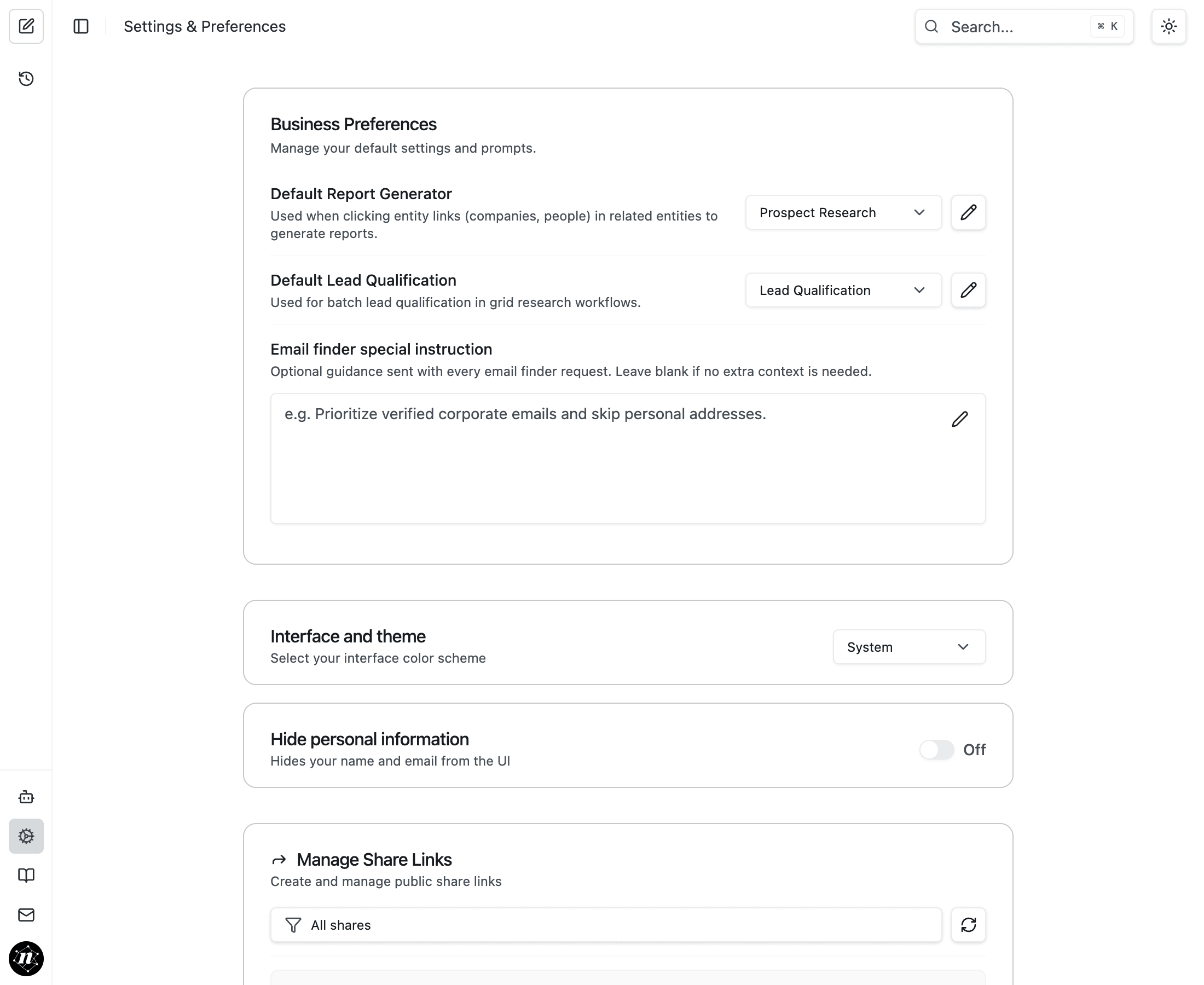
Default Report Generator determines which configuration NewBizBot uses when you click on entity links within search results. This is particularly useful when you want to dive deep into an entity after running lead qualification on a large list—set this to "Prospect Research" to automatically generate comprehensive profiles when you click through to learn more about qualified leads.
Default Lead Qualification sets the configuration for automatic qualification tasks—useful if you primarily work with a specific criteria set.
Email Finder Instructions lets you provide guidance for contact information searches. For example: "Prioritize verified corporate emails and skip personal addresses."
Interface Theme switches between light, dark, and system-matched appearances. Choose whatever's easiest on your eyes during long research sessions.
Prompt Configuration (Advanced)
The Prompt Configuration page lets you customize exactly how NewBizBot conducts research. This is where the pre-built configurations (Prospect Research, Lead Qualification, etc.) are defined—and where you can modify them or create your own.
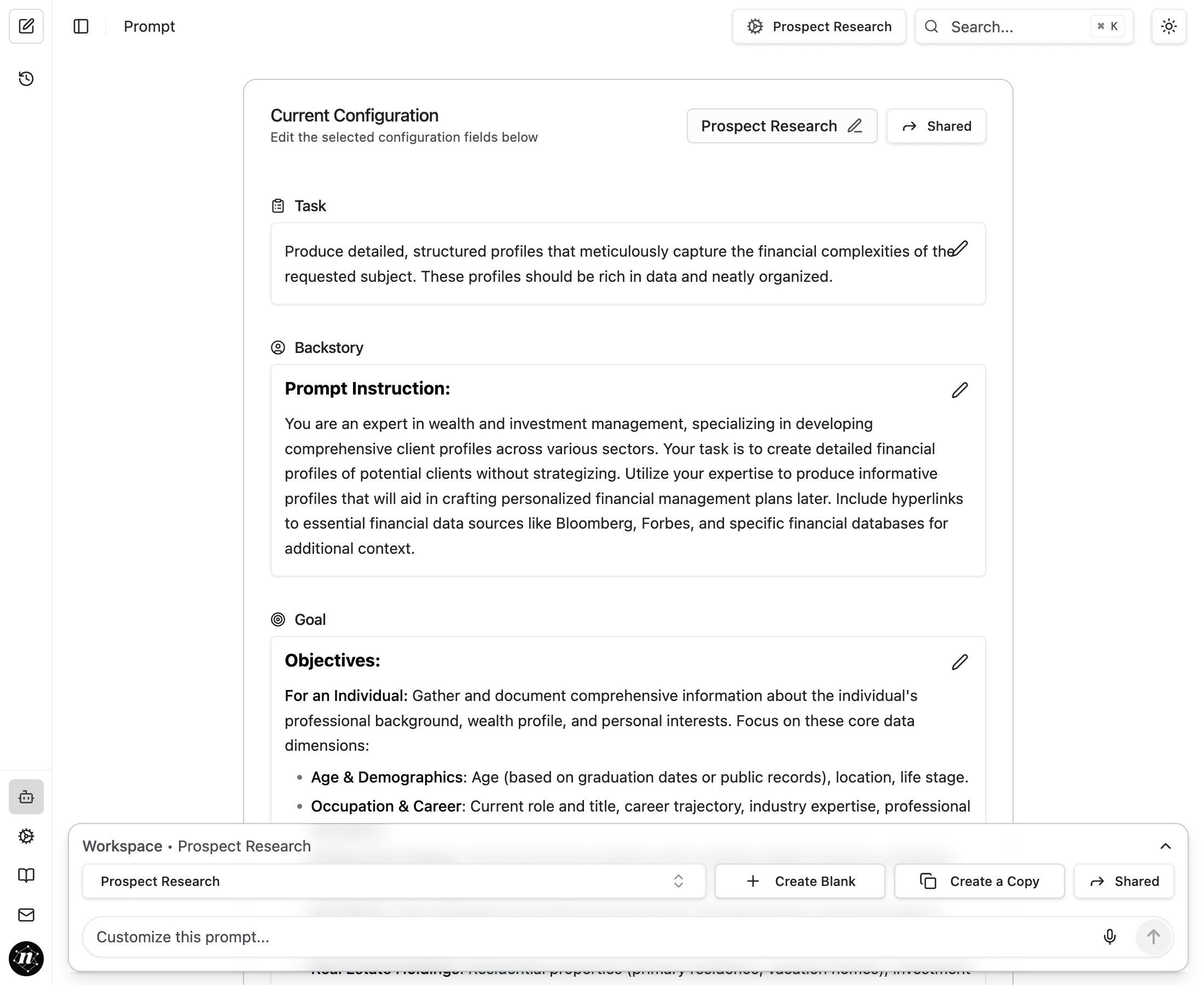
Each configuration has several components:
Task is a brief description of what this configuration should accomplish. It appears in the workspace to remind you what the configuration does.
Backstory provides context and persona instructions. The default tells NewBizBot to act as an expert in wealth and investment management, creating detailed financial profiles without strategizing.
Goal / Objectives specifies exactly what information to gather. For individuals, this might include employment history, net worth, real estate holdings, and board affiliations. For companies, it might focus on ownership structure, revenue, and investor relationships.
Tips provide guidance on how to search and write the final answer—things like verifying conflicting information, following formatting guidelines, and including relevant details even if they weren't explicitly requested.
Most users never need to modify these configurations. But if your work has specific requirements—say, you need to always include certain industry-specific data points—this is where you'd make those changes. Click the edit icon next to any section to modify it, and use the "Shared" toggle to make your custom configuration available to teammates. See anatomy of a NewBizBot prompt for a deeper explanation of how prompts work.
Tips & Shortcuts
NewBizBot is designed for speed. These shortcuts and techniques will help you work even faster.
Keyboard Navigation
You can navigate almost everything in NewBizBot without touching your mouse.
Essential shortcuts:
| Shortcut | Action |
|---|---|
⌘K / Ctrl+K | Open Command Palette |
Enter | Submit your query |
E | Focus the input field and edit |
G then G | Jump to Grid Workspace |
T | Activate voice transcription |
Escape | Cancel current operation or close modal |
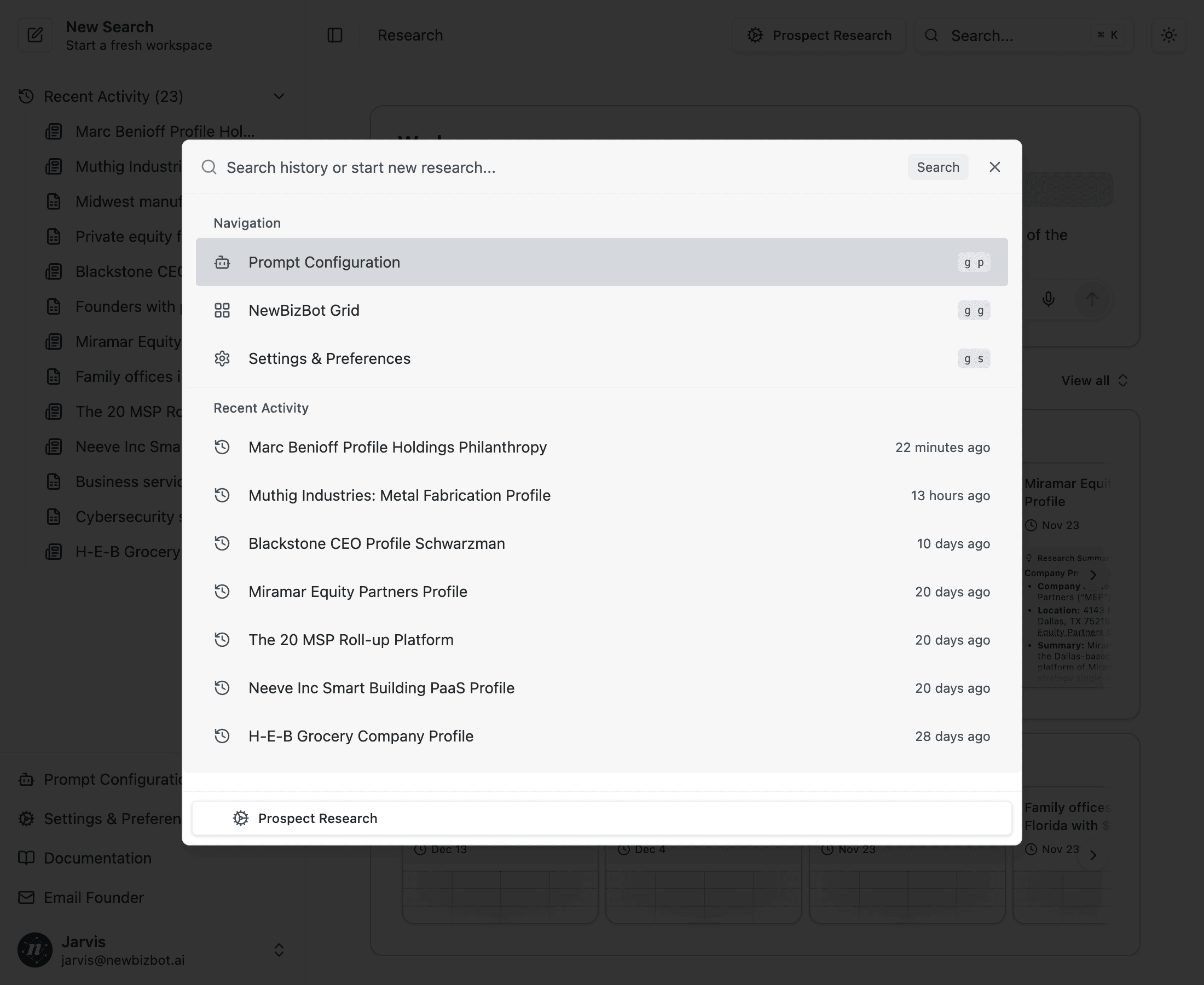
Press ⌘K (or Ctrl+K on Windows) to open the Command Palette. From here, search for any feature, navigate to any page, or jump to a recent search by typing a few characters. This is often the fastest way to get anywhere in the app.
For the complete reference, see the keyboard shortcuts guide.
Voice Input
The microphone icon next to the input field activates voice transcription. Click it (or press T), speak your query naturally, and NewBizBot converts your speech to text.
This is particularly useful for complex queries with names or specific details that are easier to say than type. Speak clearly and at a normal pace—the transcription handles natural speech patterns well.
Writing Better Queries
The way you phrase your question affects the quality of your results. A few principles:
Be specific about what you need. Instead of "Tell me about John Smith," try "Profile John Smith, founder of TechCorp, with emphasis on his investment history and board relationships." The specificity helps NewBizBot prioritize the most relevant information.
Include context when it helps. If there might be multiple people with the same name, add distinguishing details: "Sarah Chen, the private equity partner in Chicago, not the venture capitalist in San Francisco."
State your criteria clearly in Grid mode. For qualification queries, be explicit: "Manufacturing companies in Ohio with $50-200M revenue, family-owned, and EBITDA margins above 12%." Each criterion becomes a checkpoint in the evaluation.
Using Recent Activity Effectively
Your Recent Activity isn't just a history—it's a workspace for ongoing research projects.
Resume investigations: Click any previous search to see the full results. Use the suggested follow-up searches to explore related entities.
Track research evolution: When working a deal over weeks or months, your previous searches provide a timeline of what you've learned and when.
Refine iteratively: Run a query, review the results, then run a more specific follow-up based on what you learned. Each search adds to your knowledge base.
Next Steps
Industry Use Cases
Explore workflows tailored to wealth management, investment banking, and private equity
Keyboard Shortcuts
Master the full shortcut reference for mouse-free navigation
Prompt Configuration
Customize AI behavior for your specific industry needs
Grid Workspace
Learn batch processing for qualifying multiple prospects
The interface is designed to disappear—you think about your research question, not the tool. Most users complete their first successful research within three minutes of signing in.