Settings & Preferences
Configure defaults, manage share links, and customize your NewBizBot experience
Your Research Defaults
The Settings & Preferences page is where you configure how NewBizBot behaves when you're not actively making choices—your default configurations, visual theme, and the share links you've created. Most users visit this page once to set their preferences, then forget about it as those defaults quietly improve their workflow.
Access Settings & Preferences from the sidebar under Settings, or use the keyboard shortcut G then S from anywhere in NewBizBot.
Business Preferences
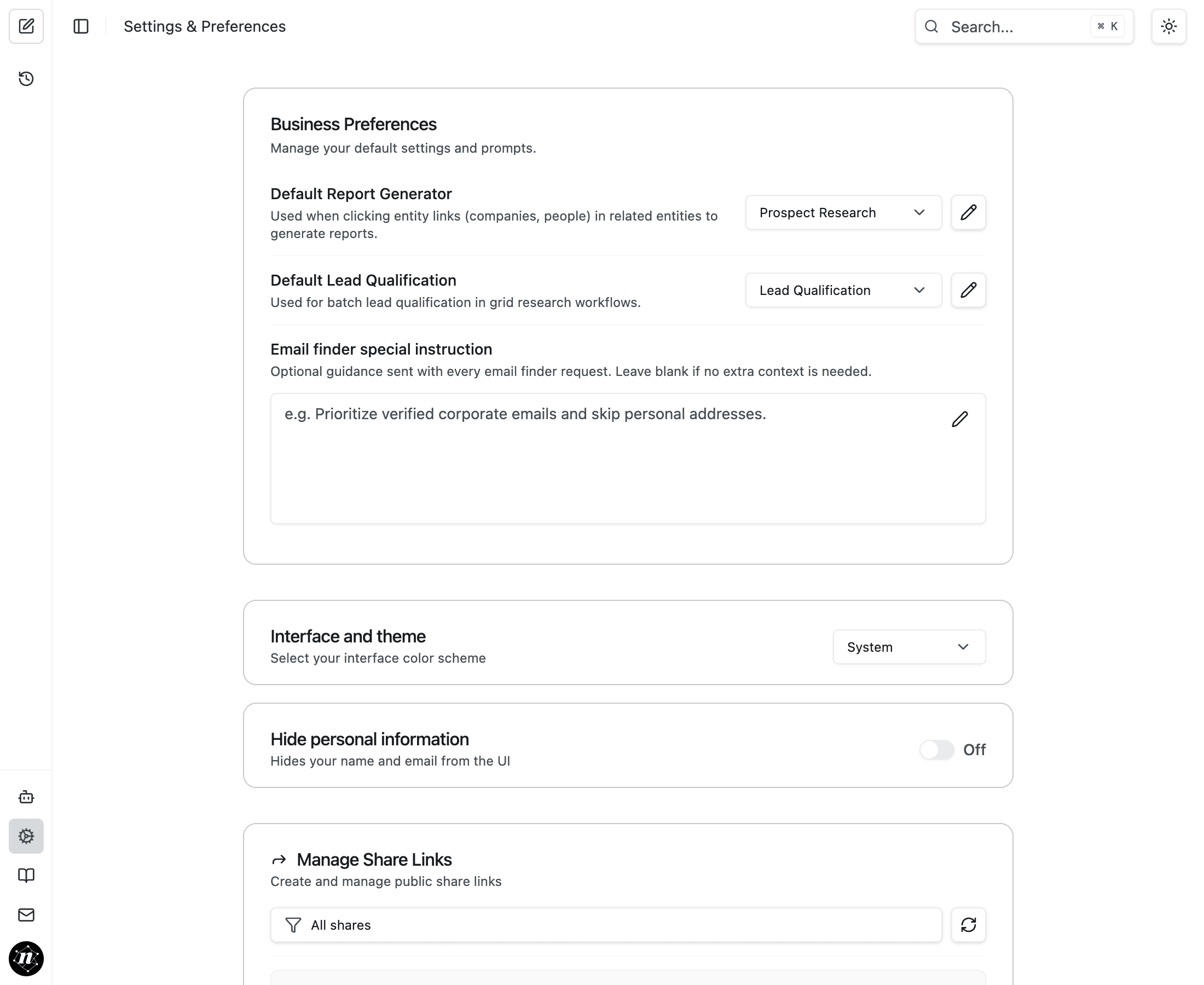
The Business Preferences section controls how NewBizBot handles automated research tasks. These settings matter most when you're clicking through research results and want consistent behavior without manually selecting configurations each time.
Default Report Generator
When you click on an entity link within your research results—say, a company name mentioned in someone's employment history, or a person referenced as a board member—NewBizBot automatically generates a detailed report on that entity. The Default Report Generator setting determines which prompt configuration gets used for these follow-up queries.
If you frequently research individuals after viewing company profiles, set this to "Prospect Research" so you receive comprehensive personal profiles. If your work centers on company analysis, you might prefer a company-focused configuration. The key is that you don't need to manually select a configuration every time you click a link—your default handles it.
Default Lead Qualification
This setting controls which prompt configuration applies during automatic lead qualification tasks. When you use Grid mode to evaluate prospects at scale, the system uses your Default Lead Qualification setting to determine whether each entity meets your criteria.
For most users, leaving this set to "Lead Qualification" works well. If you've created a specialized configuration for your industry—say, "Healthcare PE Targets" or "SaaS Company Screening"—you can set that as your default so Grid mode automatically applies your custom criteria.
Email Finder Instructions
The Email finder special instruction field lets you provide persistent guidance for every contact information search. When you click "Find contact information" on a research result, NewBizBot uses an email finding agent that can accept custom instructions. Whatever you enter here accompanies every request.
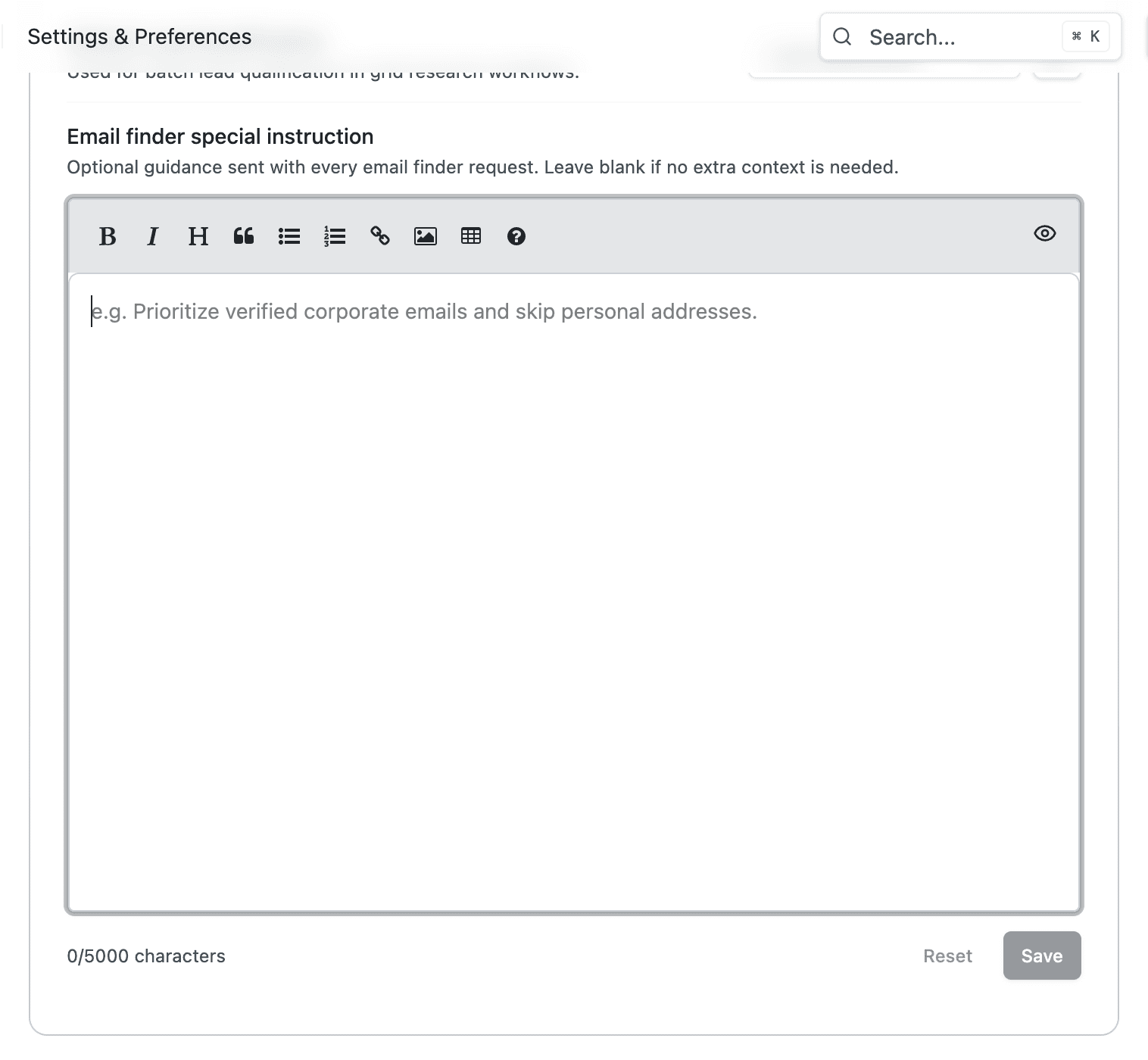
Useful instructions might include preferences like "Prioritize verified corporate emails and skip personal addresses" or "Focus on direct dial numbers for executives, not general company lines." You can also specify verification preferences: "Only return email addresses that pass validation checks" or "Include LinkedIn profiles as fallback when email isn't available."
Leave this field blank if you don't need extra guidance—the email finder works well with default behavior for most use cases.
Interface Settings
Theme
The theme selector lets you choose between System, Light, and Dark modes. System mode automatically matches your operating system's appearance setting. This preference is stored locally in your browser and applies immediately.
Hide Personal Information
This setting hides your name and email from the UI by applying a blur effect to your profile information in the sidebar navigation. This is useful when sharing your screen during presentations, video calls, or when working in public spaces where you'd prefer to keep your identity private.
When enabled, the blur effect applies to:
- Your avatar image in the sidebar
- Your display name
- Your email address
The blur is purely visual and does not affect functionality—you can still click on your profile to access account settings or sign out. Toggle this setting on before starting a screen share, then toggle it off when you're done.
This setting is stored locally in your browser. If you use NewBizBot on multiple devices or browsers, you'll need to enable it on each one separately.
Managing Your Share Links
The Manage Share Links section gives you visibility and control over every public link you've created. This is where you see which research you've shared, when you shared it, and where you can revoke access when it's no longer appropriate.
Understanding the Share List
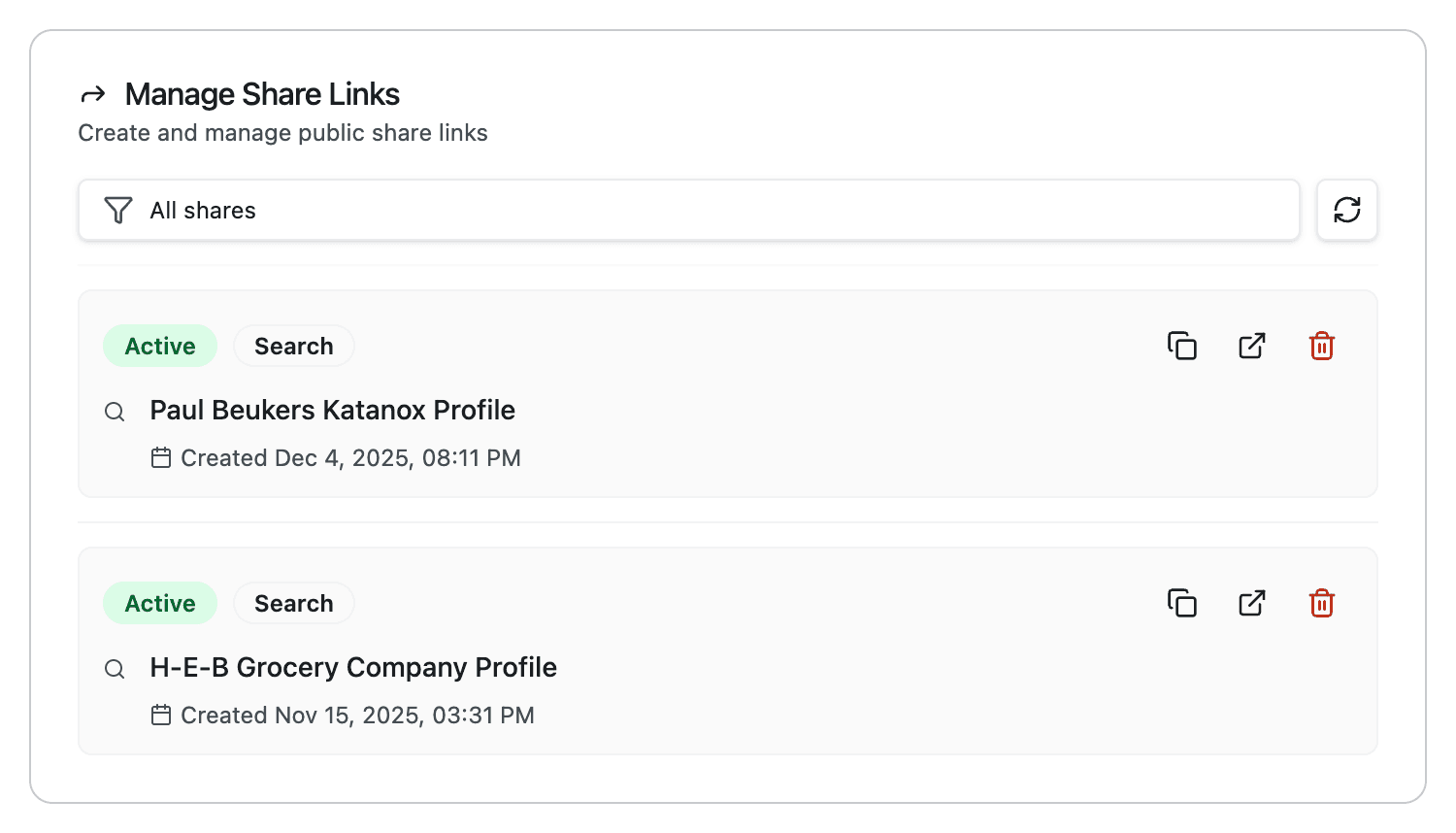
Each share appears as a card showing several pieces of information at a glance. The status badge indicates whether the share is currently active—accessible to anyone with the link. The type badge distinguishes between Search shares (individual research results) and Grid shares (batch qualification results).
The card displays the research title so you can identify what was shared, along with the creation date showing when you created the link. Three action buttons appear on each card: copy the link, open it in a new tab to see what recipients see, or revoke access entirely.
Filtering Your Shares
As your share history grows, the filter dropdown at the top helps you find specific links. You can filter by share type to see only Grid shares or only Search shares, or view all shares together. The refresh button updates the list if you've created or revoked shares in another tab.
Actions You Can Take
Copy copies the share URL to your clipboard so you can paste it into emails, messages, or documents. This is useful when you need to send the link again or share it with additional recipients.
Open launches the public share page in a new tab. Use this to verify what recipients will see, or to quickly review the research yourself without navigating through your history.
Revoke immediately terminates access to the shared link. Anyone who tries to access a revoked link sees a "not found" page. Use this when a deal closes, a project ends, or the research is no longer relevant. Revocation is instant and permanent—you cannot undo it, but you can always create a new share link if needed.
Pagination
The share list paginates when you have many shares, showing 10 per page. The pagination controls at the bottom let you navigate through your full share history. A count displays how many shares you have in total.
For detailed guidance on creating shares and sharing strategies, see Sharing Research with Your Team.
Generating Onboarding Links
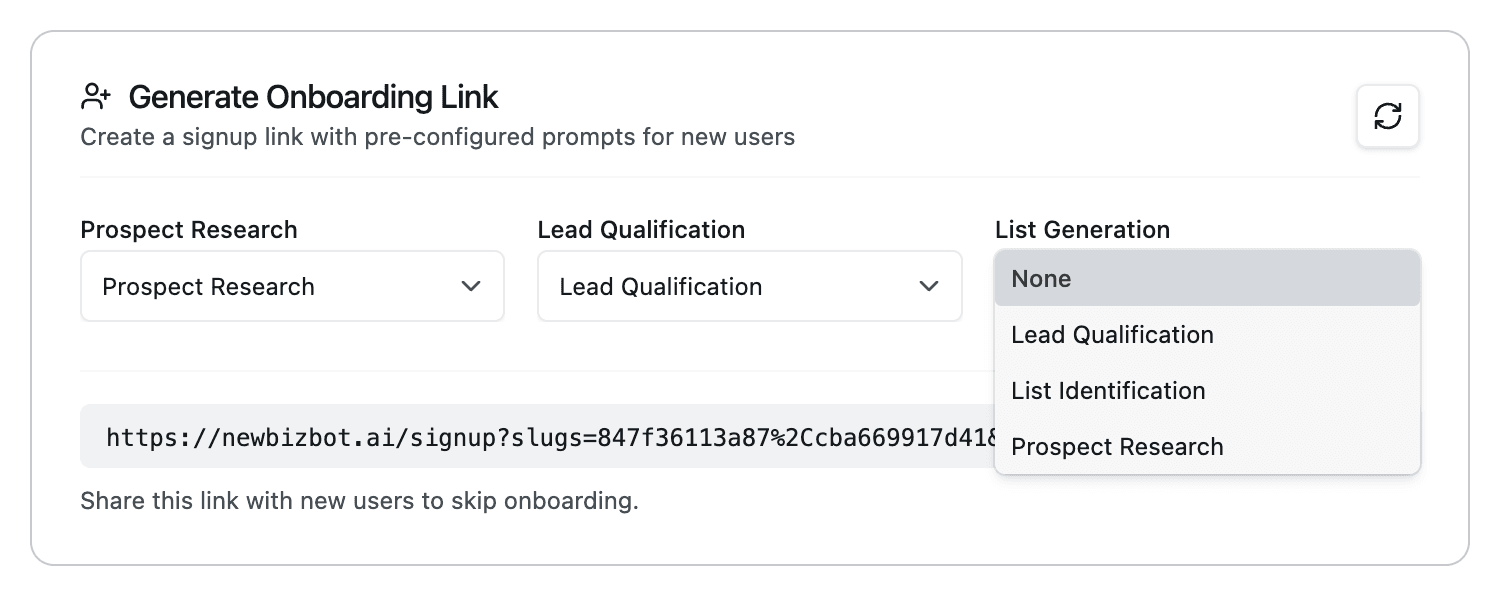
The Generate Onboarding Link section is designed for team leads and administrators who want to bring new users onto NewBizBot with pre-configured settings. Instead of having new team members set up their prompt configurations manually, you can create a signup link that automatically applies your team's preferred configurations.
How It Works
The section displays three dropdown menus corresponding to the three main research types: Prospect Research, Lead Qualification, and List Generation. For each, you select which configuration the new user should receive when they sign up.
Select "None" for any research type you want to leave at the system default. If you've created custom configurations—perhaps a "Healthcare Investment Banking" prompt for your team's industry focus—those appear as options in the dropdowns alongside the standard configurations.
Once you've selected at least one configuration, the system generates a unique signup URL. Share this URL with new team members. When they create their account through this link, they receive your selected configurations automatically applied to their workspace, ready for use without additional setup.
When to Use This
Onboarding links prove valuable when you're bringing multiple people onto NewBizBot with consistent settings. Instead of sending written instructions ("After you sign up, go to Prompt Configuration and change the Goal section to include..."), you give them a link that handles the configuration automatically.
This is particularly useful for:
- Onboarding new analysts with your firm's standard research configurations
- Setting up client accounts with configurations tailored to their industry
- Creating training environments with specific prompt setups
Danger Zone
At the bottom of Settings & Preferences, you'll find the Danger Zone—a section for actions that are difficult or impossible to reverse. The red styling is intentional: these controls require careful consideration before use.

Reset Configuration
The Reset & Restart button removes all your prompt configurations and restarts the onboarding process. This means:
- All custom prompts you've created are permanently deleted
- Your default configurations return to the original system settings
- You'll see the onboarding wizard again on your next visit
- Your research history remains intact—only configurations are affected
This option exists primarily for users who want a completely fresh start. If you've experimented extensively with configurations and want to begin again with clean defaults, this is how you do it. It's also useful if you're switching between very different use cases and want to rebuild your configuration library from scratch.
The reset action cannot be undone. Before clicking Reset & Restart, consider whether you might want to preserve any of your current configurations by copying their content elsewhere first.
Quick Reference
| Setting | Purpose |
|---|---|
| Default Report Generator | Configuration used when clicking entity links in results |
| Default Lead Qualification | Configuration used for automatic Grid mode qualification |
| Email Finder Instructions | Persistent guidance for contact information searches |
| Theme | Choose between System, Light, or Dark interface appearance |
| Hide Personal Information | Hides your name and email from the UI |
| Manage Share Links | View, copy, open, or revoke your public share links |
| Generate Onboarding Link | Create signup links with pre-configured prompts |
| Reset & Restart | Delete all configurations and restart onboarding |